
• Skip to primary navigation
  • Skip to main content
  • Skip to primary sidebar
Source Digit

Source Digit

Linux, Ubuntu Tutorials & News, Technology, Gadgets & Gizmos

  • Home
  • How To
  • Ubuntu
  • Instagram
  • Blogging
  • Android
  • WordPress
  • +More
    • Cloud Computing
    • Gadgets
    • Social Media
    • Technology
  • Write for Us
Home / How To / Install Fotoxx 15.04.1 – Image Editor & Viewer – on Ubuntu 14.10 & Ubuntu 14.04

Install Fotoxx 15.04.1 – Image Editor & Viewer – on Ubuntu 14.10 & Ubuntu 14.04

By Sourabh / April 20, 2015 Category: How To, Ubuntu

Install and upgrade to Fotoxx 15.04.1 on Ubuntu 14.10 and Ubuntu 14.04. Fotoxx is an open source image editor & viewer for Linux Ubuntu Systems.

Fotoxx is an open source photo editing software for Linux Ubuntu systems. It can be used to edit images/photos and manage a large collection.

It includes thumbnail image browser and navigator, RAW file import, a comprehensive set of edit functions working in deep color, fast full-image visual feedback, multiple undo/redo, select/copy/paste, batch transforms, HDR and panorama composites, metadata edit and fast search and display.

Fotoxx 15.04 is released with the following changes:

  • New: Zonal Flatten: enhance contrast in dull areas, even if overall brightness and contrast is already well optimized (powerful, try it).
  • New: Directed Blur: 1-dimensional image blur in direction of mouse drag.
  • Properly extract thumbnails from RAW files enclosing .ppm thumbnails.
  • Album edit: View any image full size while adding and arranging images.
  • Slide Show: Support for stop show, jump to a new position, resume show.
  • Slide Show: New image transitions: implode, explode, Japanese fan.
  • Print dialog accepts margin inputs in either inches or centimeters.
  • New user setting: show or hide hidden directories in gallery view.
  • Bugfix: print dialog: displayed print size was not always correct.

Install Fotoxx 15.04.1 on Ubuntu 14.04 and Ubuntu 14.10
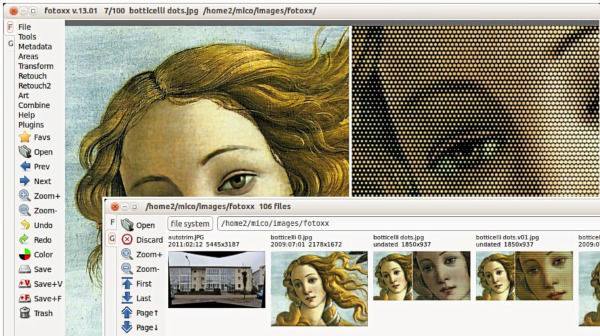
Fotoxx-Ubuntu

To install Fotoxx 15.02 on Ubuntu 14.10, Ubuntu 14.04 and Ubuntu derivative systems, run the following command in Terminal:

sudo add-apt-repository ppa:dhor/myway
sudo apt-get update
sudo apt-get install fotoxx

To uninstall and remove Fotoxx 15.04.1 from Ubuntu Systems, run the following command:

sudo apt-get remove fotoxx

Fotoxx can be downloaded from many places. The current release is here:

  • Tarball (source code, make file, user guide)
  • DEB package  (for Ubuntu, Debian and derivatives) 

Packages for many other Linux flavors:  http://pkgs.org/search/fotoxx 
Instructions for Fedora:  kornelix.com/fotoxx-fedora

A complete list of changes and updates can be found in the official announcement.

Tags: Fotoxx 15.04.1 Photo Editing Program, Fotoxx 15.04.1 Photo Editing Software, Fotoxx Image Editor, Fotoxx Image Editor Ubuntu, Fotoxx Image Editor Ubuntu 14.04, Fotoxx Image Editor Ubuntu 14.10, Fotoxx Image Editor Viewer, Fotoxx Image Editor Viewer Ubuntu, Fotoxx Image Editor Viewer Ubuntu 14.04, Fotoxx Image Editor Viewer Ubuntu 14.10, Fotoxx Image Viewer, Fotoxx Image Viewer Ubuntu, Fotoxx Image Viewer Ubuntu 14.04, Fotoxx Image Viewer Ubuntu 14.10, Fotoxx Linux Photo Editing Application, Fotoxx Linux Photo Editing Software, Fotoxx Photo Editing Software Ubuntu, Install Fotoxx 15.04.1 on Debain 7/8, Install Fotoxx 15.04.1 on Linux Mint, Install Fotoxx 15.04.1 on Linux Ubuntu, Install Fotoxx 15.04.1 on Ubuntu 14.04, Install Fotoxx 15.04.1 on Ubuntu 14.10, Install Fotoxx 15.04.1 on Ubuntu 15.04, Install Fotoxx 15.04.1 Photo Editing Program on Linux Ubuntu, Install Fotoxx 15.04.1 Photo Editing Program on Ubuntu 14.10/14.04, Install Fotoxx 15.04.1 Photo Editing Software on Linux Ubuntu, Install Fotoxx 15.04.1 Photo Editing Software on Ubuntu 14.04, Install Fotoxx 15.04.1 Photo Editing Software on Ubuntu 14.10, Photo Editing Program Fotoxx 15.04.1, Photo Editing Software Fotoxx 15.04.1, Ubuntu 14.04, Ubuntu 14.10, Ubuntu 15.04

Primary Sidebar

Latest Posts

Delete Directory And Contents Recursively Without Prompt On Linux

Check User Login History In Ubuntu Linux Command Line

Use Locate Command To Find File In Linux Terminal By Name

How To Change Terminal Color In Ubuntu Command Line

How To Run Fsck Manually In Linux To Fix Unexpected Inconsistency

How To Fix Broken Packages On Ubuntu From Terminal

Re Execute The Previous Command In Linux Ubuntu Command Line

How Much RAM Is Needed For Ubuntu PC

How To Find Large Files And Directories In Linux Command Line

How To Use Clear Command History In Linux Terminal

© 2026 Source Digit • Linux, Ubuntu Tutorials & News, Technology, Gadgets & Gizmos

  • Home
  • About
  • Privacy Policy
  • Terms & Conditions
  • Contact Us
  • Sitemap