• Skip to primary navigation
  • Skip to main content
  • Skip to primary sidebar
Source Digit

Source Digit

Linux, Ubuntu Tutorials & News, Technology, Gadgets & Gizmos

  • Home
  • How To
  • Ubuntu
  • Instagram
  • Blogging
  • Android
  • WordPress
  • +More
    • Cloud Computing
    • Gadgets
    • Social Media
    • Technology
  • Write for Us
Home / How To / How To Mount Partitions Automatically in Ubuntu 15.04/14.10/14.04

How To Mount Partitions Automatically in Ubuntu 15.04/14.10/14.04

By Sourabh / May 11, 2015 Category: How To, Ubuntu

Mount Partition automatically on start up in Ubuntu 15.04/14.10/14.04 Systems. Automatically mount partitions – How to mount Ubuntu partitions automatically on start up.

Mounting partitions automatically can be initiated via per-user mounting (usually under /media) or systemwide mounting (anywhere, often under /mnt).

Let us learn how to mount Ubuntu partitions automatically:

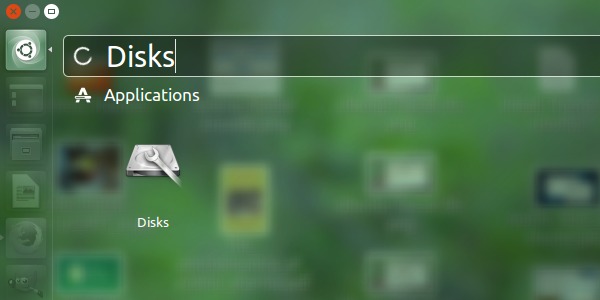
  • Open Dash and search & open Disks utility.
  • Click on it to open Disks utility tool.
Disks-01

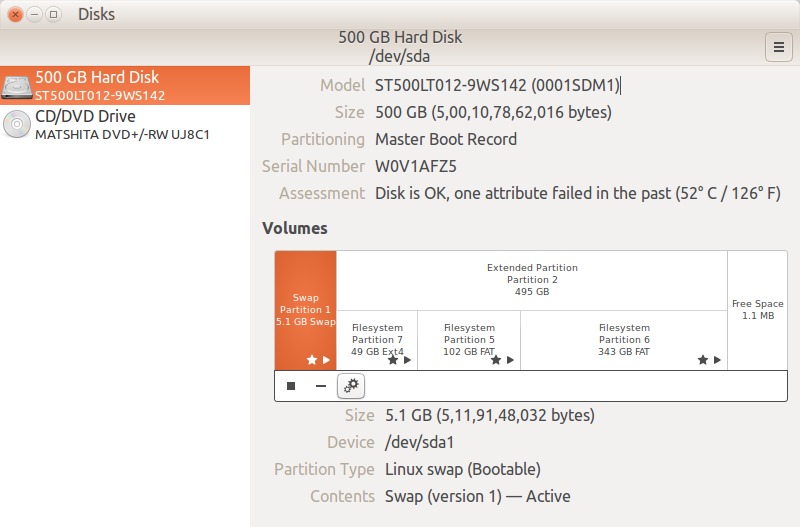
Disks utility is a tool to manage disk drives and media. Using Disks utility, one can format and partition drives and mount and unmount partitions.

  • When it opens, you can see complete information about the Hard Disk partitions on Ubuntu System.
  • Disks_006

  • Select the hard disk partition you want to mount automatically.
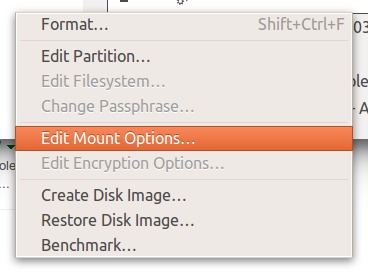
  • Click the settings-icon/gear and select “Edit Mount Options…”
  • Menu_004

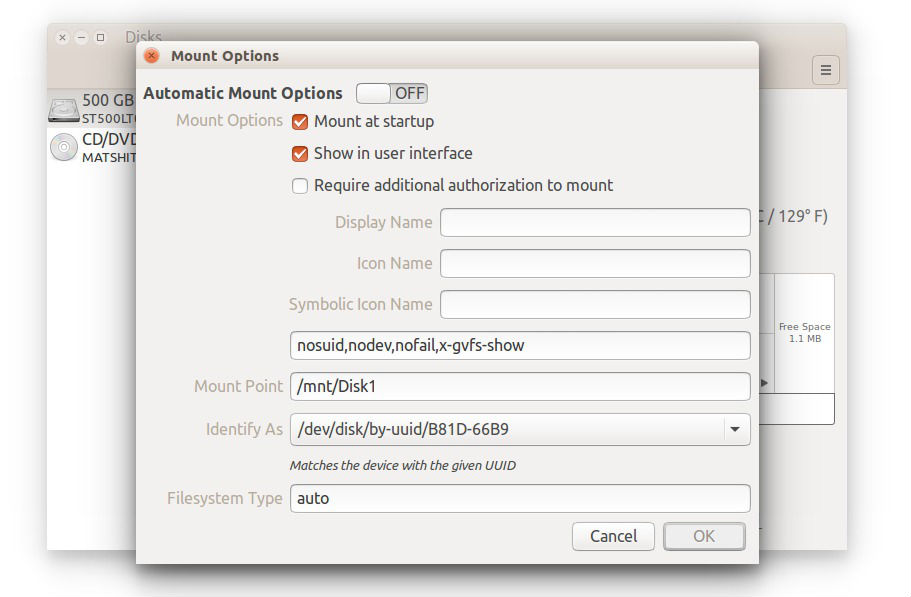
  • In the Edit Mount Options… window:
  • Turn on “Automatic Mount Options”

disk-023
Please note that there is a bug in Ubuntu 14.04 systems. Which doesn’t display the partitions on System startup (sometimes, after auto-mounting).

  • To remove this, please un-check “Show in user interface” and leave “Display Name, Icon Name, Symbolic Icon Name” empty.

Also note that even if after following the above step, you are unable to see the partitions, please check “Show in user interface” option. But, you will have to leave “Display Name, Icon Name, Symbolic Icon Name” empty.

  • Edit Mount Point and write a suitable name for the partition.

If you want to auto-mount more than one partitions, please re-do/repeat the steps on other partitions.

Tags: Disks GUI Mount Ubuntu Partitions Automatically Ubuntu 14.04, How to Mount Partitions Automatically on Start Up in Ubuntu, Mount Partitions Automatically on Start Up in Ubuntu, Mount Partitions Automatically on Start Up in Ubuntu 14.04, Mount Partitions Automatically on Start Up in Ubuntu 14.10, Mount Partitions Automatically on Start Up in Ubuntu 15.04, Mount Ubuntu Partitions Automatically, Mount Ubuntu Partitions Automatically Ubuntu 14.04, Mount Ubuntu Partitions Automatically Ubuntu 14.04 Terminal Commands, Mount Ubuntu Partitions Automatically Ubuntu 14.10, Mount Ubuntu Partitions Automatically Ubuntu 15.04, Mount Ubuntu Partitions Automatically via Graphical Way, Terminal Commands Mount Ubuntu Partitions Automatically Ubuntu 14.04, Ubuntu 14.04, Ubuntu 14.10, Ubuntu 15.04, Ubuntu 15.04 Mount Hard Disk Partitions Automatically, Ubuntu 15.04 Mount Partitions Automatically

Primary Sidebar

Latest Posts

Delete Directory And Contents Recursively Without Prompt On Linux

Check User Login History In Ubuntu Linux Command Line

Use Locate Command To Find File In Linux Terminal By Name

How To Change Terminal Color In Ubuntu Command Line

How To Run Fsck Manually In Linux To Fix Unexpected Inconsistency

How To Fix Broken Packages On Ubuntu From Terminal

Re Execute The Previous Command In Linux Ubuntu Command Line

How Much RAM Is Needed For Ubuntu PC

How To Find Large Files And Directories In Linux Command Line

How To Use Clear Command History In Linux Terminal

© 2026 Source Digit • Linux, Ubuntu Tutorials & News, Technology, Gadgets & Gizmos

  • Home
  • About
  • Privacy Policy
  • Terms & Conditions
  • Contact Us
  • Sitemap