
• Skip to primary navigation
  • Skip to main content
  • Skip to primary sidebar
Source Digit

Source Digit

Linux, Ubuntu Tutorials & News, Technology, Gadgets & Gizmos

  • Home
  • How To
  • Ubuntu
  • Instagram
  • Blogging
  • Android
  • WordPress
  • +More
    • Cloud Computing
    • Gadgets
    • Social Media
    • Technology
  • Write for Us
Home / How To / How To Install Themes In Ubuntu 15.04, Ubuntu 14.04 and Ubuntu 14.10

How To Install Themes In Ubuntu 15.04, Ubuntu 14.04 and Ubuntu 14.10

By Sourabh / May 12, 2015 Category: How To, Ubuntu

How to install Themes in Ubuntu 15.04, Ubuntu 14.04 and Ubuntu 14.10. Change Unity Desktop themes on Ubuntu with Ubuntu/Gnome Tweak Tool or via Terminal Commands. You can download and install custom themes in Ubuntu 15.04/14.10/14.04.

There are two ways to install and use themes in Ubuntu:

  1. Install Themes via PPA – Run terminal commands to install themes via PPA using Terminal commands
  2. Install Themes Manually – Download the custom theme file and install them manually

Install themes via a PPA or Terminal Commands
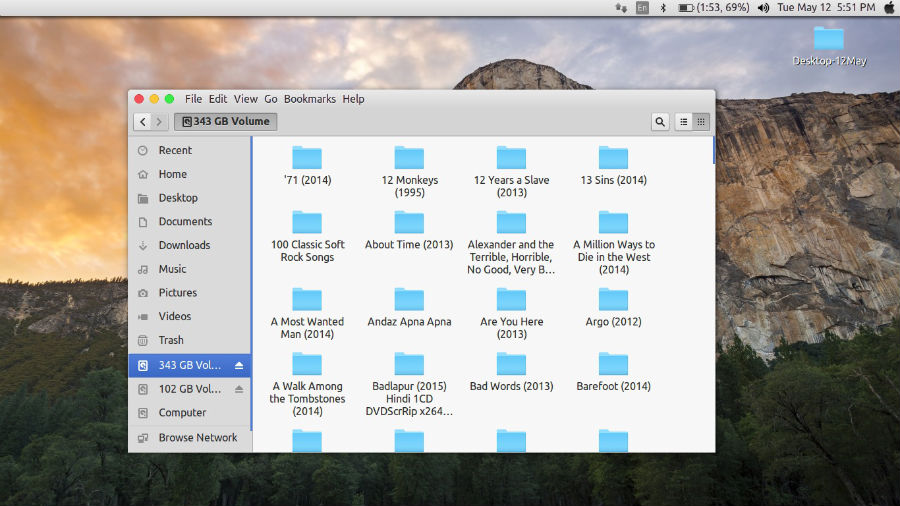
Ubuntu-Theme-screen

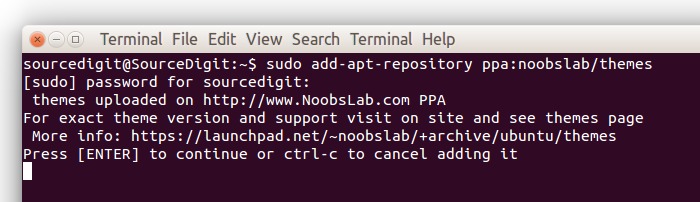
When you install themes via a PPA using Terminal, all you have to do is execute the command and rest is done by the system itself.

For example, to install Numix Theme, run the following commands in Terminal:

sudo add-apt-repository ppa:noobslab/themes
sudo apt-get update
sudo apt-get install mbuntu-y-ithemes-v5
sudo apt-get install mbuntu-y-icons-v5
 

Ubuntu-Theme-012

To Uninstall themes, icons and cursors, run the following Terminal commands:

cd /usr/share/icons/mac-cursors && sudo ./uninstall-mac-cursors.sh
sudo apt-get remove mbuntu-y-icons-v5 mbuntu-y-ithemes-v5

Install Themes Manually

If you download the custom theme file, you will have to extract theme file to ~/.themes or /user/share/themes directory. You can directly download the theme files and extract it to the theme folder and use it. You can also use the downloaded custom Theme files manually using Ubuntu configuration tools such as Ubuntu Tweak Tool, Unity Tweak Tool or GNOME Tweak Tool.

For example, you can download Libra 2.0 GTK 3.x Theme/Style for Ubuntu PC and install it manually.

Libra 2.0 GTK 3.x Theme/Style

Once downloaded extract theme file to ~/.themes or /user/share/themes directory. After extracting the theme files, you can also activate and use Ubuntu theme using Tweak Tools.
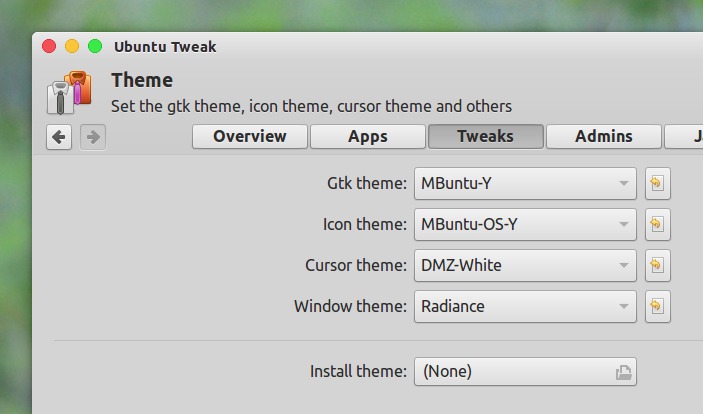
Ubuntu-Theme-013

Please note that many Themes doesn’t work properly on older versions of GTK. You will also need GTK2 engine Murrine and GTK2 engine pixbuf for Themes.

To install GTK2 engines requirements – GTK2 engine Murrine and GTK2 engine pixbuf, run the following command:

Fedora/RedHat Distros

yum install gtk-murrine-engine gtk2-engines

Ubuntu/Mint/Debian Distros

sudo apt-get install gtk2-engines-murrine gtk2-engines-pixbuf

ArchLinux

pacman -S gtk-engine-murrine gtk-engines

Tags: Add "Open as Root/Administrator" option in Ubuntu 14.10, Change Gnome Theme, Cool Ubuntu Themes, Download Themes For Ubuntu, Gnome 3 Theme, Gnome GTK Themes, GTK 2 GTK 3 Themes, Gtk2 Gtk3 Themes, How To Change Themes in Ubuntu, How to Change Themes on Ubuntu via Terminal Commands, How to Change Themes on Ubuntu with Gnome Tweak Tool, How to Change Themes on Ubuntu with Unity Tweak Tool, How To Change Ubuntu Theme, How to Customize Ubuntu - Install Ubuntu 14.04 Themes, How To Install Themes In Ubuntu, How to Install Themes in Ubuntu 14.10, How to install Themes in Ubuntu 15.04, Install Gnome Themes, Install GNOME Themes In Ubuntu, Install GTK Themes In Ubuntu, Themes For Ubuntu 13.04, Themes For Ubuntu 14.04, Themes For Ubuntu 15.04, Ubuntu 14.04, Ubuntu 14.10, Ubuntu 15.04, Ubuntu Gnome 3 Themes, Ubuntu Gnome Themes, Ubuntu UNITY Theme

Primary Sidebar

Latest Posts

Job Scheduling Using At Command In Linux With Examples

How To Check Permissions Of A Directory In Linux Command

Delete Directory And Contents Recursively Without Prompt On Linux

Check User Login History In Ubuntu Linux Command Line

Use Locate Command To Find File In Linux Terminal By Name

How To Change Terminal Color In Ubuntu Command Line

How To Run Fsck Manually In Linux To Fix Unexpected Inconsistency

How To Fix Broken Packages On Ubuntu From Terminal

Re Execute The Previous Command In Linux Ubuntu Command Line

How Much RAM Is Needed For Ubuntu PC

© 2026 Source Digit • Linux, Ubuntu Tutorials & News, Technology, Gadgets & Gizmos

  • Home
  • About
  • Privacy Policy
  • Terms & Conditions
  • Contact Us
  • Sitemap