
Set write permission on ext4 Partition in Linux Ubuntu. Change owner of Ubuntu ext4 partition from user to root/admin. [Solve] cannot copy-paste in Ubuntu ext4 partition. Unable to create new files in the Linux Ubuntu ext4 partition.
The tutorial explains how to mount an ext4 partition and have write permission in Ubuntu Linux. Using the instructions given below, you can change the ownership of internal hard drive partition from user to root/admin.
First this, you need to know the UUID of the ext4 partition. But before that it will be better to know the name of partition. The name, in Ubuntu, would be like sdaX or something.
To find the name of partition use the following command in Terminal. Open Terminal using the shortcut keys (Ctrl+Alt+T):
$ sudo fdisk -l
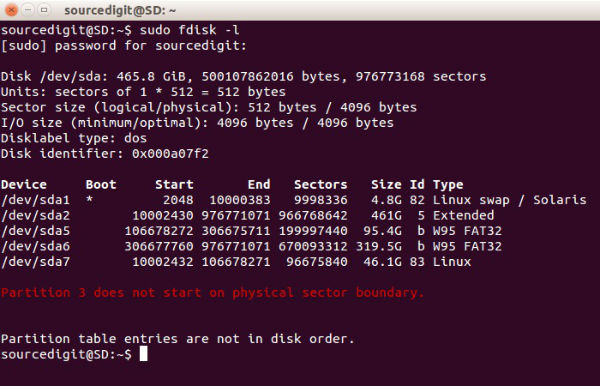
To find the UUID by us the following command in Terminal:
$ sudo blkid
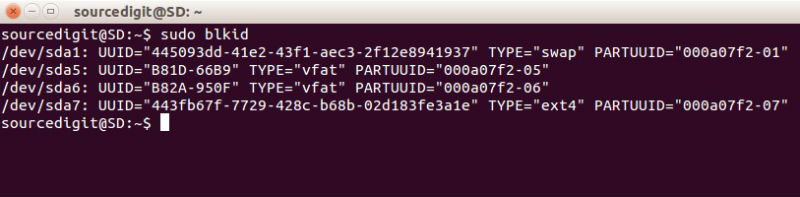
With the use of partition name easily identify the UUID.
Once we have the UUID, the next step is to find out where is the partition mounted. Usually the location of the ext4 mount is /media/. Where user_name is your own username. You can display the mounted partitions in the following manner:
$ ll /media/
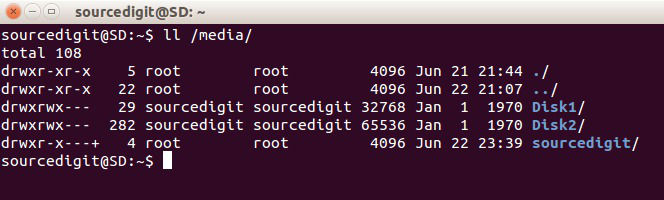
Replace the with your user name. The output of the command for me was this:
First Method
The easiest method to give the write permission to everyone is using the “chmod 777” command. But, it give write access to anyone (every user). Hence avoid using “chmod 777” for security reasons.
Second Method
To solve the error, try “sudo chown user:user” command. The command in easy to use. But be careful, the command is a bit complex to use. The sudo chown command uses the following format
“Sudo chown User:Group” (screenshot below)
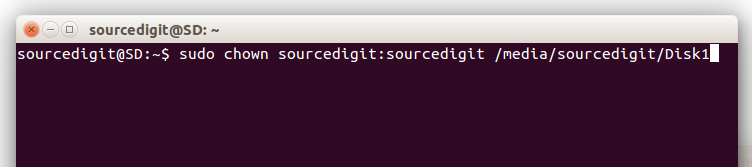
In the screenshot, the group is sourcedigit and user is also called sourcedigit. You can also use the command with R argument. R is for recursive and it affects all directory/files and subdirectory.
$ sudo chown sourcedigit:sourcedigit /media/sourcedigit/Disk1
That’s it. If everything goes fine, you will be have full write/edit permission. This is the most logical method to have write permission on ext4 partition on Linux Ubuntu Systems. Once you get the write permission you can easily copy-paste or create new files in the ext4 partition.