
Get live cricket scores on Linux Ubuntu Desktop. Install Cricket Score Indicator (AppIndicator) on Ubuntu 15.04 and Ubuntu 14.04 and see live cricket scores from ESPNcricinfo on the panel.
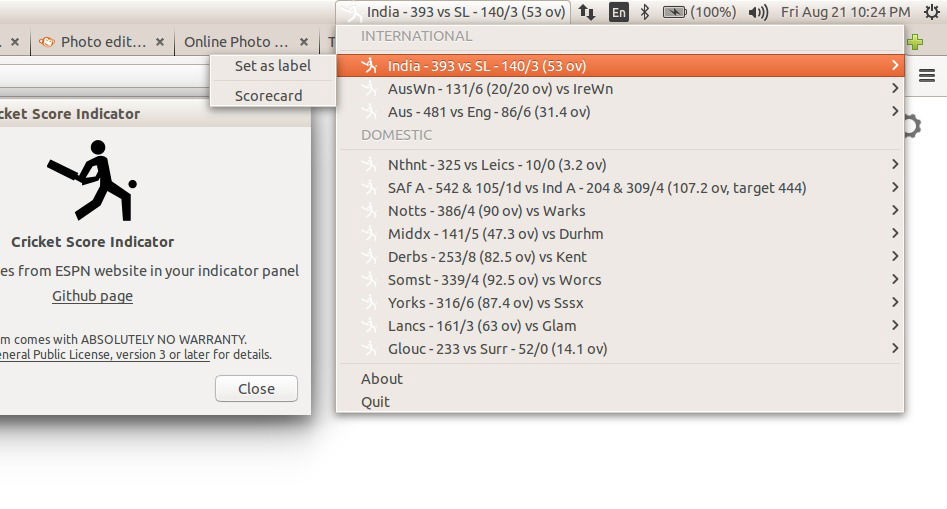
The Cricket Score Indicator displays international and domestic live cricket scores in the AppIndicator menu. It also allows you to set any match as the label or view the detailed scorecard. To enable scorecards, simply click on the “scorecard” submenu for any cricket match from the indicator.
Features
- Shows current score as indicator label
- Updated as soon as espncricinfo is updated
- Submenu shows the scorecard of corresponding match
- Categories for International and Domestic matches
- Option to set a particular match score as indicator label
- Adds new match as it is available and deletes the unavailable ones
- Icon shows the runs scored on the last delivery of the corresponding match
- Initially all submenus (scorecards) are hidden to reduce network usage
Install Cricket Score Indicator App in Ubuntu
Cricket Score Indicator can be insatlled on Ubuntu Systems vua PPA (Ubuntu 14.04, Ubuntu 15.04 and Ubuntu 14.10). To install the Cricket Score Indicator, run the following commands:
Using Terminal/Command Line
sudo apt-add-repository ppa:rawcoder/cricket-score-indicator

sudo apt-get update

sudo apt-get install cricket-score-indicator
It can be also installed on other Linux distributions via Python PIP:
pip install -i https://pypi.python.org/pypi cricket_score_indicator
Using GUI
Method 1:
- Open “Software & Updates” (search in dash).
- Select “Other Software” tab and click on ‘Add’.
- Now type: ppa:rawcoder/cricket-score-indicator and press ENTER
- You may be prompted for password, enter it.
- Now “Close” the window. You have added the PPA to your software sources.
- If a dialog asking for updating sources appear, click on “Reload”. This will update your software sources list.
- Else, you need to run “Software Updater” to reload your sources list.
Method 2:
- Open “Ubuntu Software Center”.
- Search “Cricket Score Indicator”.
- You may have to click on “Show # technical item” for it to show up.
- Install it!
Usage
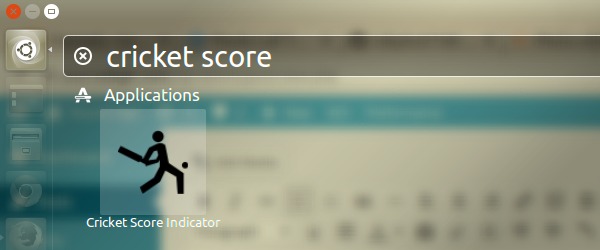
Once installed, you can open and run from the Application Menu/Ubuntu Dash. Search for Cricket Score Indicator
- From terminal run the command cricscore_indicator
- To run indicator in background nohup cricscore_indicator &
Initially all scorecards (submenus) are disabled for reducing network usage as submenu update uses more data. The icons will not update as well since the update depends on scorecard data.
To enable scorecard for a particular match, use the “Scorecard” check button inside the submenu of that match.