
How to install MATE Desktop Environment on Ubuntu Systems. Install MATE Desktop 1.12 on Ubuntu 15.10, Ubuntu 14.04, Ubuntu 15.04 and Derivatives. The Mate Desktop is shipped by default on Fedora, Arch Linux, Linux Mint and BSD Systems.
The MATE Desktop Environment is the continuation of GNOME 2. It provides an intuitive and attractive desktop environment using traditional metaphors for Linux and other Unix-like operating systems. MATE is under active development to add support for new technologies while preserving a traditional desktop experience.
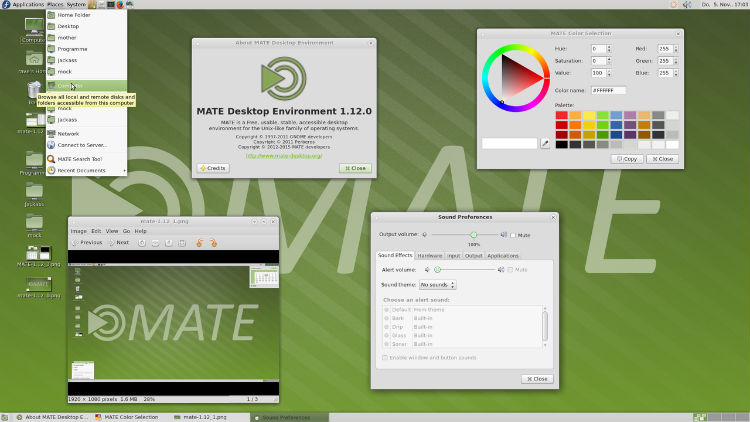
The name “MATE”, pronounced Ma-Tay, comes from yerba maté, a species of holly native to subtropical South America. Its leaves contain caffeine and are used to make infusions and a beverage called mate.
What’s new in MATE 1.12
The headline changes in MATE 1.12 are:
for mate-common
- Support lcov 1.12
- Update documentation and examples
for mate-desktop
- Require dconf 0.13.4 and xrandr 1.3
- Add gsettings key to toggle overlay scrolling in GTK+3
- Add some icons to fix missing icons in GTK+3 with custom icon theme
- Mouse schema: enable middle-click emulation by default
- RR: implement missing mate_rr_output_get_possible_crtcs function
- RR: fix laptop identification by output name
- RR: show output name in addition to display name
- Moved docbook user guide to a separate project
- Dropped dependency on yelp (not needed after moving user guide)
for mate-panel
- Require xrandr 1.3
- Add option to enable/disable week numbers in calendar
- Fix positions of locked applets on screen resolution change
- GTK+3: add a style class for applets to follow panel-menu-bar
for mate-themes
- GTK3 all themes: style volume/brightness applet slider
- Assorted improvements and refinements for all themes, in particular for GTK 3.18.
for mate-control-center
- Appearance: restored Interface tab
- Display: added support to set the primary monitor
- Display: show output names in addition to display names
- Keybindings: added keybinding for logout
- Touchpad settings: add option to enable/disable touchpad
- Touchpad settings: added support for natural scrolling, 2 finger and 3 finger clicks
- Improved categorization
- GTK+3: fix font rendering in Appearance and mate-font-viewer
Other prominent fixes:
- Improvements for GTK3 support across the entire MATE Desktop including GTK 3.18 support.
- Touchpad support is significantly improved and now features multi touch and natural scrolling.
- Multi monitor support has been improved so the display settings use output names and the revised UI lets you set the primary monitor.
- The power applet now displays model and vendor information so you can distinguish between multiple battery powered devices.
- Improved session management which now includes screensaver inhibition while playing media.
- MATE now listens to the org.gnome.SessionManager namespace.
- Extended systemd support.
- Long standing bugs and many little usability paper-cuts were fixed.
- For example, panel applets are no longer reordered when changing screen resolutions.
- Translations updated and a number of components now retrieve strings directly from gschema (requires intltool 0.50.1).
- Dropped support for win32 and osx.
Install MATE Desktop on Ubuntu
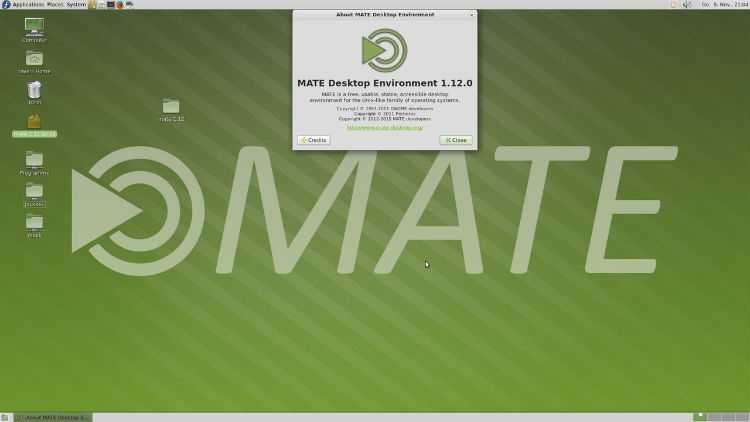
Run the following commands in Terminal to install MATE Desktop on Ubuntu, via PPA:
$ sudo apt-add-repository ppa:ubuntu-mate-dev/ppa

$ sudo apt-get update

$ sudo apt-get install mate-desktop-environment
Uninstall MATE Desktop on Ubuntu
If you want to uninstall and remove MATE Desktop from Ubuntu Systems, run the commands given below:
$ sudo apt-get install ppa-purge

$ sudo ppa-purge ppa:ubuntu-mate-dev/ppa