
Install Task Coach 1.4.3 on Ubuntu 15.10, Ubuntu 15.04, Ubuntu 14.04, via PPA. Task Coach is a simple open source todo manager to keep track of personal tasks and todo lists. It is designed for composite tasks, and also offers effort tracking, categories, notes and more.
The desktop version of Task Coach (Windows, Mac, Linux, BSD) has the following features:
- Creating, editing, and deleting tasks and subtasks.
- Tasks have a subject, description, priority, start date, due date, a completion date and an optional reminder. Tasks can recur on a daily, weekly or monthly basis.
- Tasks can be viewed as a list or as a tree.
- Tasks can be sorted by all task attributes, e.g. subject, budget, budget left, due date, etc.
- Several filters to e.g. hide completed tasks or view only tasks that are due today.
- Tasks can be created by dragging an e-mail message from a mail user agent (Outlook, Thunderbird, Claws Mail, Apple Mail) onto a task viewer.
- Attachments can be added to tasks, notes, and categories by dragging and dropping files, e-mail messages, or URL’s onto a task, note or category.
- Task status depends on its subtask and vice versa. E.g. if you mark the last uncompleted subtask as completed, the parent task is automatically marked as completed too.
- Tasks and notes can be assigned to user-defined categories.
- Settings are persistent and saved automatically. The last opened file is loaded automatically when starting Task Coach.
- Tracking time spent on tasks. Tasks can have a budget. Time spent can be viewed by individual effort period, by day, by week, and by month.
- The Task Coach file format (.tsk) is XML.
- Tasks, notes, effort, and categories can be exported to HTML and CSV (comma separated format). Effort can be exported to iCalendar/ICS format as well.
- Tasks, effort, notes, and categories can be printed. When printing, Task Coach prints the information that is visible in the current view, including any filters and sort order.
- Task Coach can be run from a removable medium.
- Tasks and notes can be synchronized via a Funambol server such as My Funambol.
Install Task Coach on Ubuntu
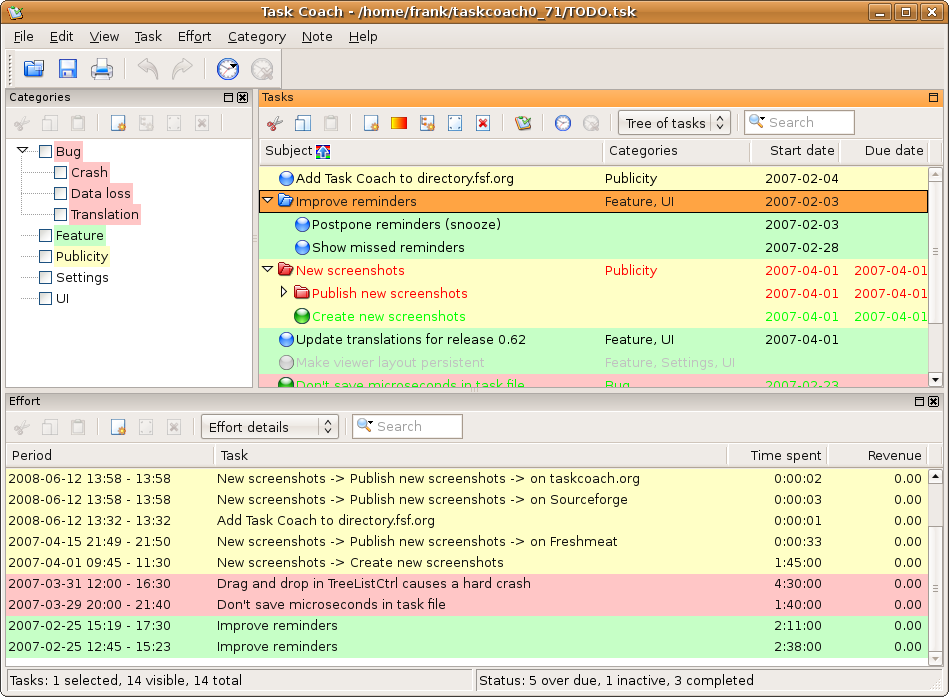
Task Coach 1.4.3 is the latest version of the Task Coach To Do Manager. It has been released with the following features and bugfixes:
Bugs fixed:
- Fix excessive CPU usage on Linux when smart filesystem monitoring is enabled.
- Fix attachment opening on some Linux distros.
Features added:
- Finnish translation fixed and enabled.
- The shortcut to delete tasks is now Ctrl+DEL instead of just DEL.
Run the following command in Terminal to install Task Coach on Ubuntu Systems:
sudo add-apt-repository ppa:taskcoach-developers/ppa

sudo apt-get update

sudo apt-get install taskcoach
Once installed, open the Task Coach 1.4.3 from Ubuntu Dash.
If you want to uninstall and remove Task Coach 1.4.3, run the command:
sudo apt-get remove taskcoach