
• Skip to primary navigation
  • Skip to main content
  • Skip to primary sidebar
Source Digit

Source Digit

Linux, Ubuntu Tutorials & News, Technology, Gadgets & Gizmos

  • Home
  • How To
  • Ubuntu
  • Instagram
  • Blogging
  • Android
  • WordPress
  • +More
    • Cloud Computing
    • Gadgets
    • Social Media
    • Technology
  • Write for Us
Home / How To / How To Install TextSuggest Linux Autocomplete Tool On Ubuntu 16.04

How To Install TextSuggest Linux Autocomplete Tool On Ubuntu 16.04

By Sourabh / June 21, 2016 Category: How To, Ubuntu

How to install TextSuggest on Linux Ubuntu 16.04. TextSuggest is a Linux autocomplete tool, a simple Linux Ubuntu utility to autocomplete words in the GUI.

Install TextSuggest

Before installing TextSuggest make sure the system have xdotool, xclip and dmenu installed. Once TextSuggest is installed, assign keyboard shortcuts to

  • python3 /path/to/TextSuggest.py
  • python3 /path/to/TextSuggest.py –noselect

Deb Package – bharadwaj-raju/packages/TextSuggest/textsuggest_1.0_all.deb

When TextSuggest is installed through the deb package, please replace python3 /path/to/TextSuggest.py with just textsuggest. The TextSuggest.py gives suggestions on the currently highlighted word and TextSuggest.py –noselect gives you the list of all possible words. The TextSuggest and TextSuggest.py –noselect script stores frequently used words in a history file (~/.textsuggest_history.txt).

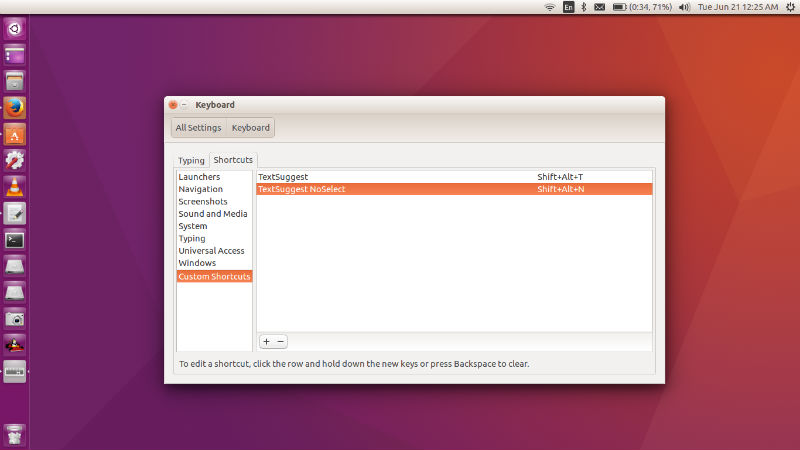
Once installed you’ll have to assign custom keyboard shortcuts for “TextSuggest” and “TextSuggest -noselect”. To add custom keyboard shortcuts, open Keyboard settings and add the relevant shortcuts (see screenshot below).
Screenshot-12r

dmenu

If you have not installed dmenu2 on your system, you will see the suggestion bar at the bottom of the screen. You can install dmenu2, an extended fork of dmenu, by Michał Lemke at melek/dmenu2. TextSuggest assumes that you have dmenu2 installed on the system. If you want to use the old dmenu, pass the –olddmenu option.

Add custom words

Users can also add custom words to a ~/.Custom_Words.txt file. The Extra_Words.txt file already includes 1653 words by default. Apart from these words, one can also define expansions, in ~/.Custom_Words.txt.

Credit

  1. http://www.omgubuntu.co.uk/2016/06/quick-text-autocomplete-desktop-linux
  2. https://github.com/bharadwaj-raju/TextSuggest

Tags: Autocomplete Tool for Linux Desktops, Autocomplete Tool for Ubuntu Desktops, How To Install TextSuggest Linux Autocomplete Tool On Ubuntu 16.04, Install Linux Autocomplete Tool On Ubuntu 16.04, Install TextSuggest Linux Autocomplete Tool On Ubuntu 16.04, Install TextSuggest On Ubuntu 16.04, Linux Desktop Autocomplete Tool, Linux TextSuggest, TextSuggest Autocomplete Tool for Linux Desktops, TextSuggest Linux, TextSuggest Ubuntu, Ubuntu Desktop Autocomplete Tool, Ubuntu TextSuggest

Primary Sidebar

Latest Posts

Delete Directory And Contents Recursively Without Prompt On Linux

Check User Login History In Ubuntu Linux Command Line

Use Locate Command To Find File In Linux Terminal By Name

How To Change Terminal Color In Ubuntu Command Line

How To Run Fsck Manually In Linux To Fix Unexpected Inconsistency

How To Fix Broken Packages On Ubuntu From Terminal

Re Execute The Previous Command In Linux Ubuntu Command Line

How Much RAM Is Needed For Ubuntu PC

How To Find Large Files And Directories In Linux Command Line

How To Use Clear Command History In Linux Terminal

© 2026 Source Digit • Linux, Ubuntu Tutorials & News, Technology, Gadgets & Gizmos

  • Home
  • About
  • Privacy Policy
  • Terms & Conditions
  • Contact Us
  • Sitemap