
Install Tor Browser 6.0.4 on Ubuntu 16.04, Ubuntu 15.04 and Ubuntu 14.04. Install Tor on Ubuntu via Terminal (sudo apt-get install tor-browser). Learn how to run Tor on Ubuntu.
The Tor software protects you by bouncing your communications around a distributed network of relays run by volunteers all around the world: it prevents somebody watching your Internet connection from learning what sites you visit, it prevents the sites you visit from learning your physical location, and it lets you access sites which are blocked.
The Tor Browser lets you use Tor on Windows, Mac OS X, or Linux without needing to install any software. It can run off a USB flash drive, comes with a pre-configured web browser to protect your anonymity, and is self-contained (portable).
Tor Browser 6.0.4
Tor Browser 6.0.4 release finally brings Tor Browser users the latest Tor stable, 0.2.8.6, and avoids pinging Mozilla’s servers for system extensions. The announcement reads:
“Pinging Mozilla’s servers was responsible for users getting an extension into their Tor Browser that resulted in annoying and confusing “Your Firefox is out of date” notifications on start-up (bug 19890). Thanks to Mozilla engineers, who fixed that issue as quickly as possible on their side, the extension is not shipped to Tor Browser users anymore since August 11 13:00 UTC. This takes care of getting the add-on removed as well in case it got installed into Tor Browser (as does the fix we ship in Tor Browser 6.0.4) which should have happened/is happening during the next extension update ping. For further information see the discussion in our bug tracker.”
Install Tor Browser 6.0.4 on Ubuntu 32 Bit
Open Terminal and run the following commands to install Tor Browser 6.0.4 on Ubuntu 32 bit Systems:
wget https://www.torproject.org/dist/torbrowser/6.0.4/tor-browser-linux32-6.0.4_en-US.tar.xz

tar -xvf tor-browser-linux32-6.0.4_en-US.tar.xz

cd tor-browser_en-US/

./start-tor-browser.desktop
Install Tor Browser 6.0.4 on Ubuntu 64 Bit
Open Terminal and run the following commands to install Tor Browser 6.0.4 on Ubuntu 64 bit Systems:
wget https://www.torproject.org/dist/torbrowser/6.0.4/tor-browser-linux64-6.0.4_en-US.tar.xz

tar -xvf tor-browser-linux64-6.0.4_en-US.tar.xz

cd tor-browser_en-US/

./start-tor-browser.desktop
Run Tor Browser 6.0.4 on Ubuntu
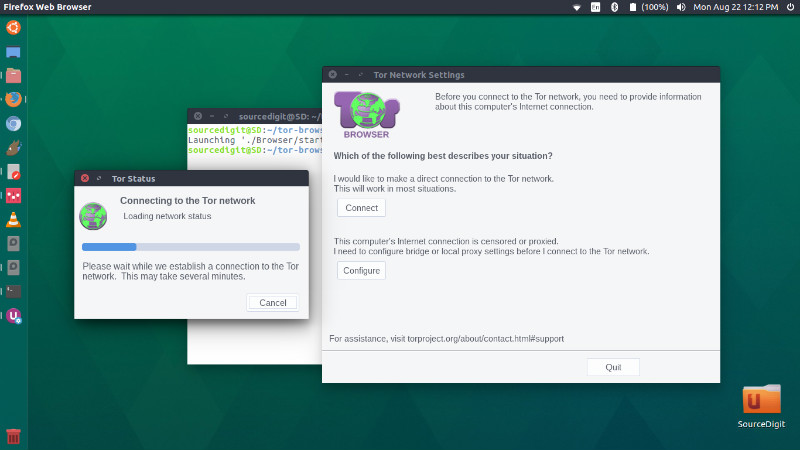
Once installed, open the Tor Browser from Ubuntu Dash or Terminal. To run Tor Browser, click either on the Tor Browser or the Tor Browser Setup icon or execute the start-tor-browser.desktop file in a terminal:
./start-tor-browser.desktop
This will launch Tor Launcher and once that connects to Tor, it will launch Firefox.