
For secure messaging, besides public channels and direct messages, create private channels can also be created for subjects that are sensitive or confidential. You can also create a group message of up to eight other people if you have a couple of teammates that you collaborate with in a short-term, lightweight basis. Private channels and group messages will only be visible to those in the channel or group.
Slack Features:
- Channels – Organize your team conversations in open channels. Make a channel for a project, a topic, a team, or anything—everyone has a transparent view of all that’s going on. For sensitive information, create private channels and invite a few team members
- Direct Messages – Send messages directly to another person or to a small group of people for more focused conversations.
- Calls – Take a conversation from typing to face-to-face by starting a Slack voice or video call in any Channel or Direct Message. From there, you’re one click away from sharing your screen, so everyone can follow along.
- Drag, drop, and share files – Not just your messages, but all your files, images, PDFs, documents, and spreadsheets can be dropped right into Slack and shared with anyone you want. Add comments, star for later reference, and it’s all completely searchable.
Slack 2.6.3
Slack 2.63. is the latest release. It brings the following changes:
- Sometimes if you changed networks, we used to rouse from sleep in a bit of a daze, greeting you with a blank screen. Now, we awaken bright-eyed and bushy-tailed. Or at the very least, with your team displayed.
- Where, in rare cases, some external links didn’t end up pointing to the right place when you clicked them, they now do.
- Video playback should now be much smoother, and nicer to your network.
- On certain keyboard layouts, hitting backspace didn’t actually delete the last character, which was a surprise, but a surprise of the lesser kind – there is now one fewer lesser surprise.
Download and Installing Slack
- Visit the Slack downloads page at https://slack.com/downloads
- Under Linux (Beta), choose between Ubuntu 32-bit and Ubuntu 64-bit in the drop-down menu, then press the green download button to the right.
- Find the downloaded file in your Downloads folder. The file name will begin “slack-desktop”.
- Double click the file to view Slack in Ubuntu Software Center.
- Click the Install button to the right. You may need to enter the password you use to log in to Ubuntu.
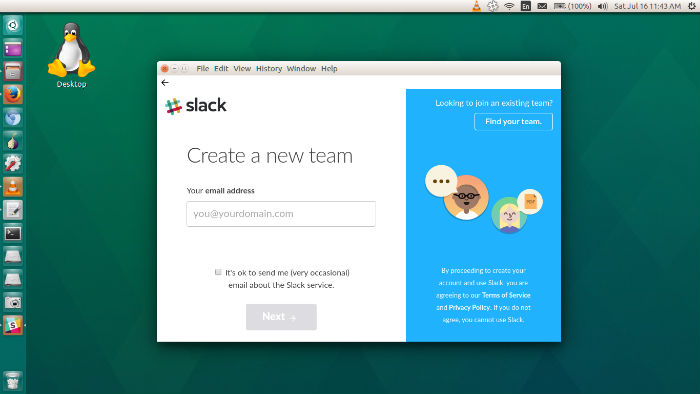
- To run the app, search your computer for Slack, then double click the Slack icon.
Using Slack
Once Slack is installed, open it from Ubuntu Dash.