
Understanding apt-get command in Linux with examples. This post explains apt-get update && apt-get upgrade && apt-get dist-upgrade commands in Linux Ubuntu Systems.
apt
apt provides is a commandline interface for the package management system on Linux Ubuntu Systems. apt is intended for end user interface and enables specialized operations on packages using 2 kinds of apt tools – apt-get and apt-cache.
apt-get is used for installing, upgrading, and cleaning apt packages.
apt-cache is used for finding new packages.
Note that apt-cache performs search query on APT’s package cache. It does not manipulate or edit the system. It only provide operations to search from the package metadata. Whereas the metadata is acquired and updated via the ‘update’ command.
apt-get
The apt-get is apt package handling utility (command-line interface for handling packages.)
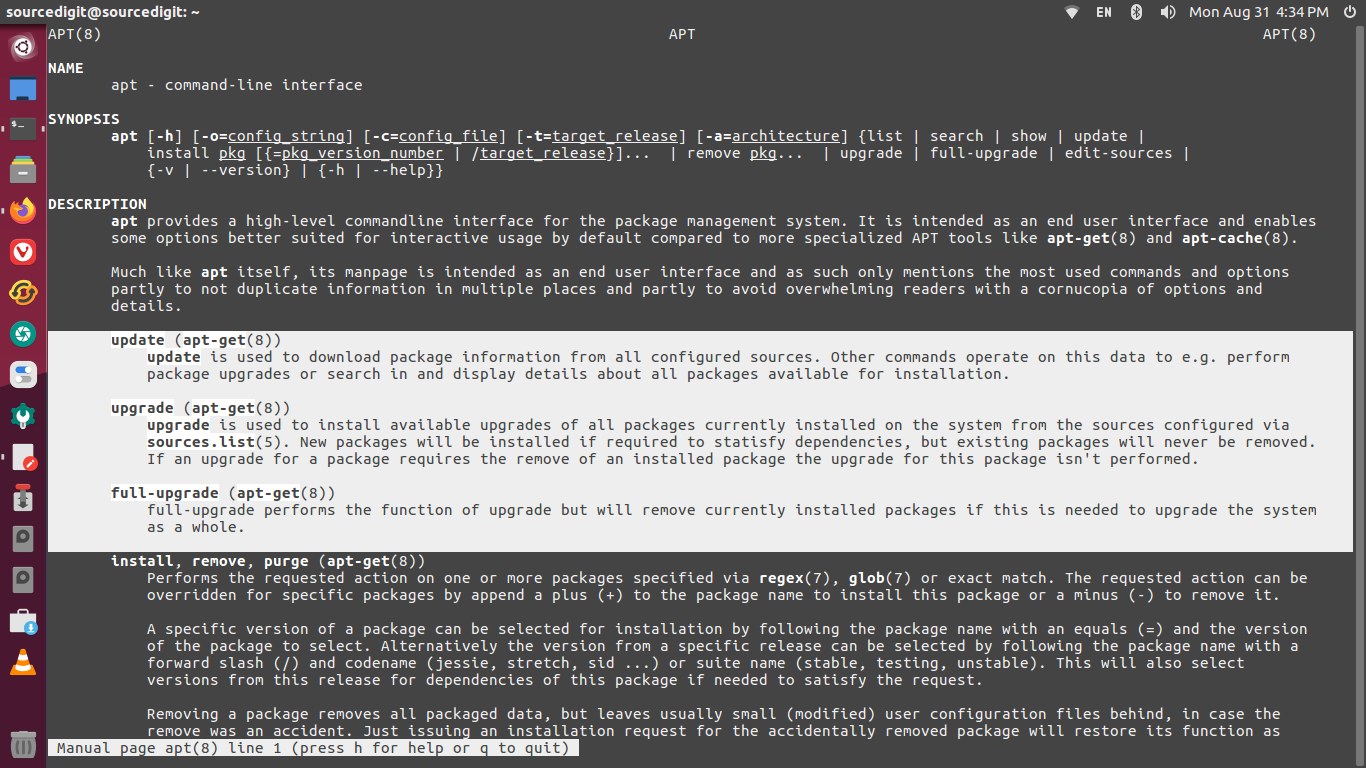
apt-get upgrade will not change what is installed (only versions), apt-get dist-upgrade will install or remove packages as necessary to complete the upgrade, apt upgrade will automatically install but not remove packages.apt full-upgrade performs the same function as apt-get dist-upgrade .
apt-get update
apt-get update is used to download package information from all configured sources. It perform package upgrades or search in and display details about all packages available for installation.
When apt-get update command is executed, the command retrieves and scans the packages files, so that information about new and updated packages is available.
Note that an update should always be performed before an upgrade or dist-upgrade.
apt-get upgrade
apt-get upgrade is used to install all the available upgrades of packages which are currently installed on the system.
When the command is executed, it retrieves the information from the sources configured via sources.list.
Using apt-get upgrade, packages currently installed with new versions available are retrieved and upgraded; under no circumstances are currently installed packages removed, or packages not already installed retrieved and installed.
New versions of currently installed packages that cannot be upgraded without changing the install status of another package will be left at their current version.
Note that an update must be performed first so that apt-get knows that new versions of packages are available.
dist-upgrade
dist-upgrade is similar to apt-get upgrade command, but in addition to performing the package upgrade function, it also handles changing dependencies with new versions of packages. Which means, the dist-upgrade command may remove some packages.
The /etc/apt/sources.list file contains a list of locations from which to retrieve desired package files.
Apart from all these 3 command options, there is another useful apt-get command option – apt-get full-upgrade.
The full-upgrade performs the function of upgrade but will remove currently installed packages if this is needed to upgrade the system as a whole.