
Wondering how to find process id in Linux and check running process in Ubuntu terminal, read to find how to find process id in Linux?
Get Pid Of Process In Linux Ubuntu
You can find the PID of processes running on the system using the below nine command.
- pidof: pidof – find the process ID of a running program.
- pgrep: pgrep – look up or signal processes based on name and other attributes.
- ps: ps – report a snapshot of the current processes.
- pstree: pstree – display a tree of processes.
- ss: ss is used to dump socket statistics.
- netstat: netstat is displays a list of open sockets.
- lsof: lsof – list open files.
- fuser: fuser – list process IDs of all processes that have one or more files open
- systemctl: systemctl – Control the systemd system and service manager
pidof
The pidof command is used to find the process ID of a running program. Pidof finds the process id’s (PIDs) of the named programs. It prints those id’s on the standard output.
NOTE: In the above command output (screenshot) you may see more than one process IDs because it displays all PIDs – including parent and child against the specified process name (given along the command as argument/option).
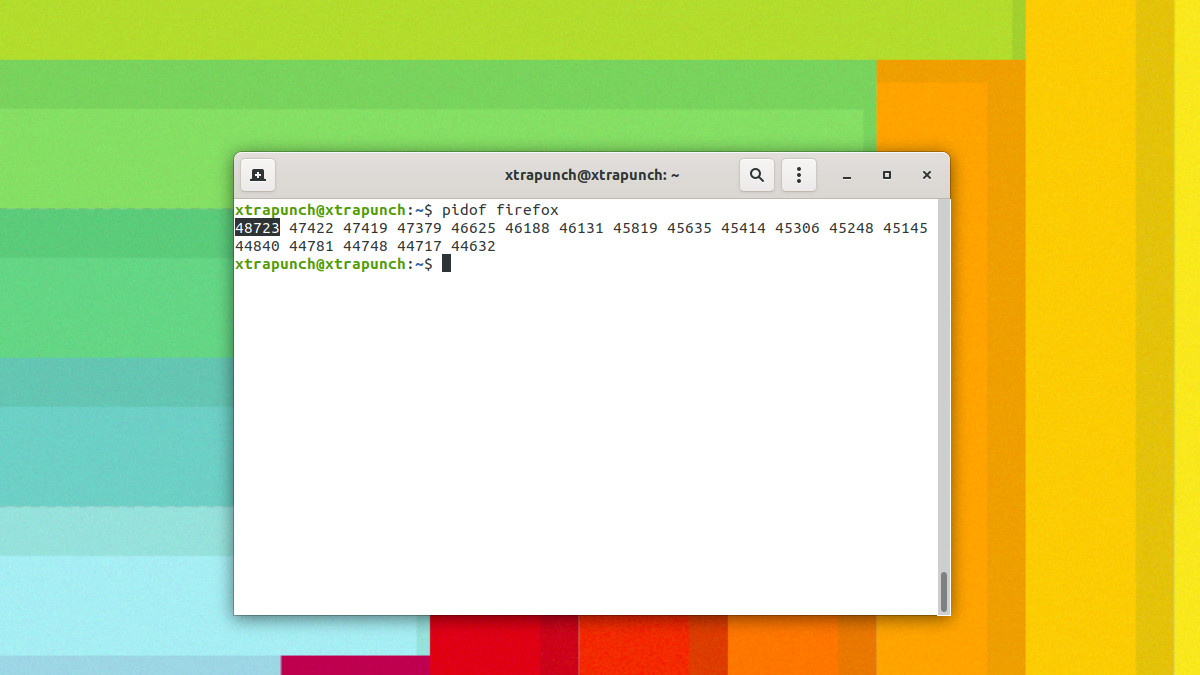
When pidof is invoked with a full pathname to the program it should find the pid of, it is reasonably safe. Otherwise it is possible that it returns PIDs of running programs that happen to have the same name as the program you’re after but are actually other programs.
In this case – when we need to find the Parent Process PID (PPID) – the first number is the parent process id. In this case it is 48723 (see screenshot above). Also note that all the process ids are sorted in descending order.
pstree
Another great command to find the process is pstree. The pstree command shows running processes as a tree-like format which is very easy to display the process hierarchy. It is easy to read and understand the command output as it makes the output more visually appealing.

pstree displays a tree of processes. pstree shows running processes as a tree. The tree is rooted at either pid or init if pid is omitted. If a user name is specified, all process trees rooted at processes owned by that user are shown. pstree visually merges identical branches by putting them in square brackets and prefixing them with the repetition count.
Similarly you can use other commands (listed above).