
How to check installed software in Ubuntu terminal? Wondering how to check installed packages in Linux command, you can use apt-get to list installed packages or dpkg to list installed packages.
dpkg Query
You can use the dpkg-query command to list the packages. dpkg-query is a tool to show information about packages listed in the dpkg database.
The dpkg-query command be used to list packages matching given pattern. If no package-name-pattern is given, list all packages in /var/lib/dpkg/status, excluding the ones marked as not-installed (i.e. those which have been previously purged).
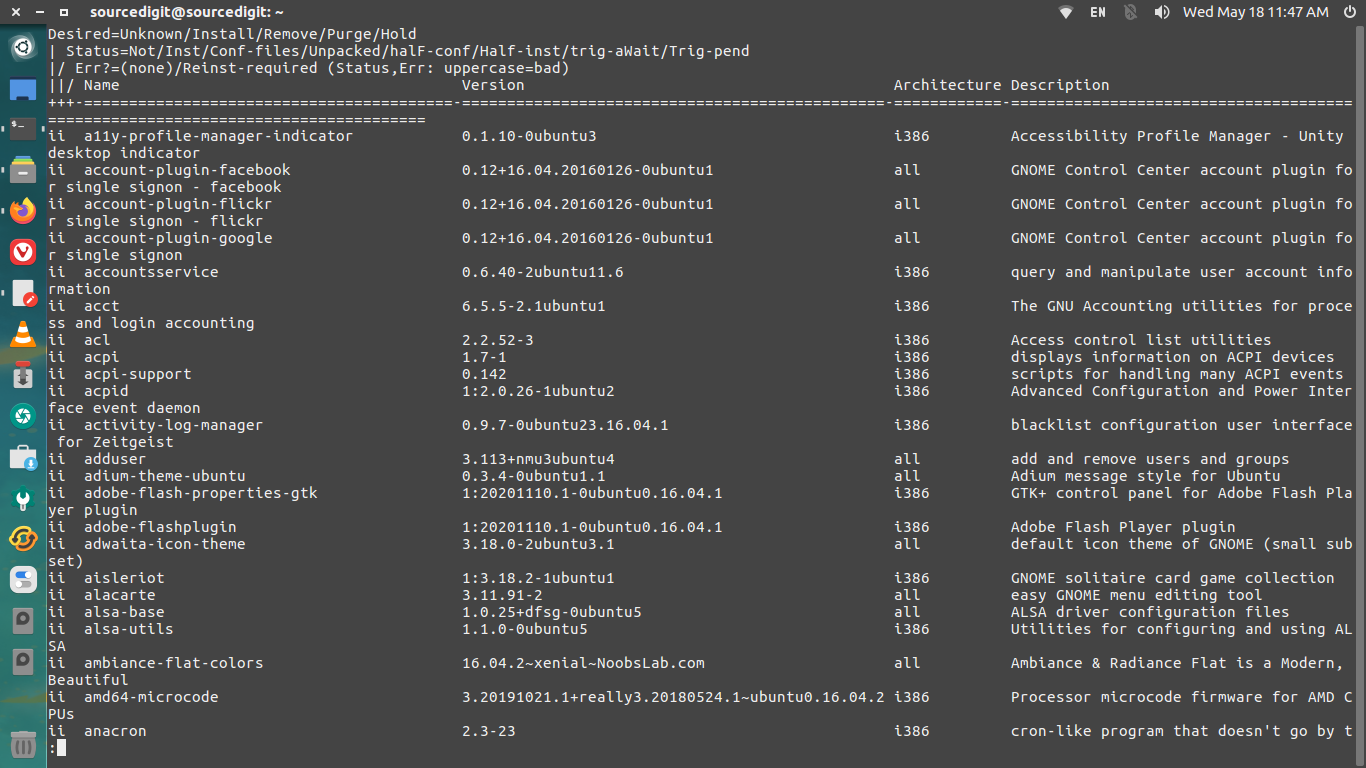
The first three columns of the output show the desired action, the package status, and errors, in that order.
Desired action:
u = Unknown
i = Install
h = Hold
r = Remove
p = Purge
Package status:
n = Not-installed
c = Config-files
H = Half-installed
U = Unpacked
F = Half-configured
W = Triggers-awaiting
t = Triggers-pending
i = Installed
Error flags:
= (none)
R = Reinst-required
An uppercase status or error letter indicates the package is likely to cause severe problems.
sudo dpkg-query -l | less
You can also use -L command argument to list files installed to your system from package-name. When multiple package-name are listed, the requested lists of files are separated by an empty line, with the same order as specified on the argument list. However, note that files created by package-specific installation-scripts are not listed.
2. list Command
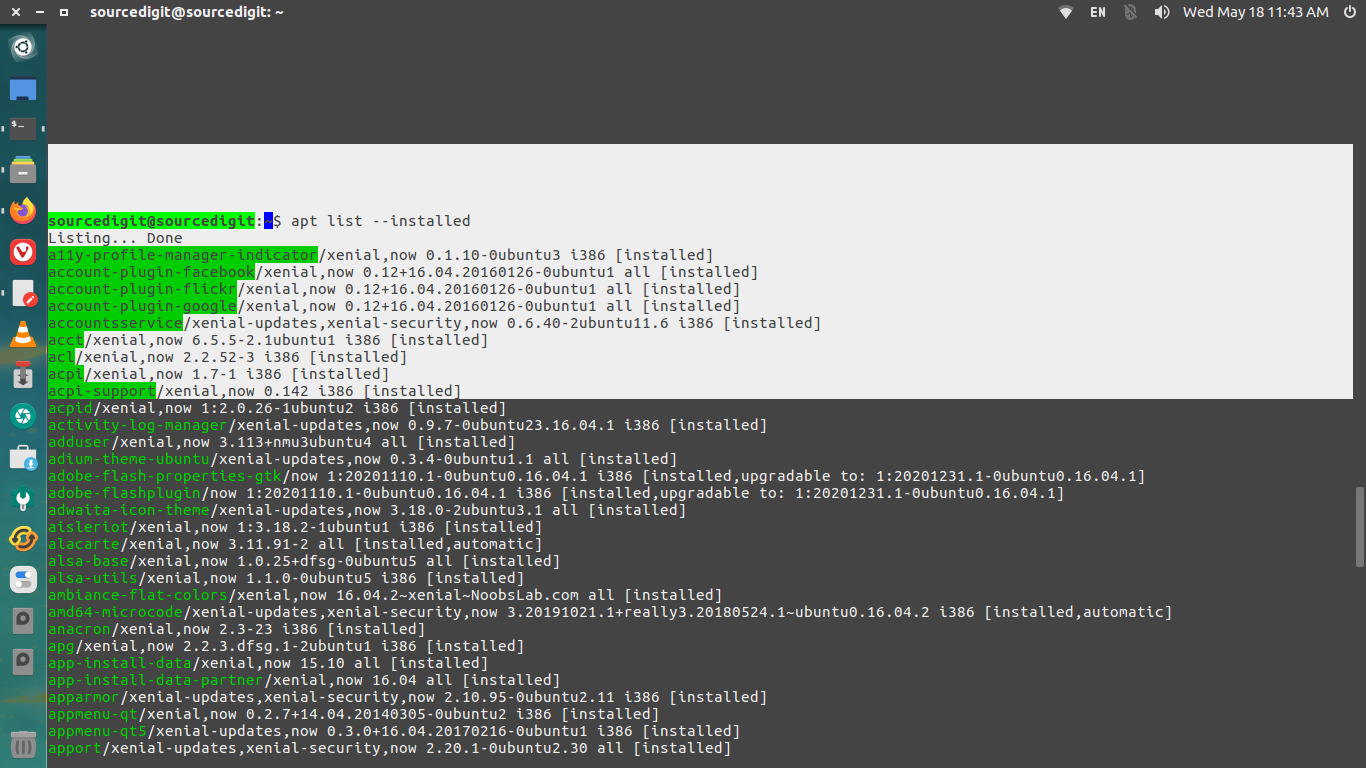
list is somewhat similar to dpkg-query –list in that it can display a list of packages satisfying certain criteria. It supports glob patterns for matching package names as well as options to list installed (–installed), upgradeable (–upgradeable) or all available (–all-versions) versions.
sudo apt list --installedsudo apt list --installed | lesssudo apt list --installed | grep firefox
List Snap and Flatpak Packages
To list the Linux Snap packages installed, run the following command:
snap list
Similarly, to list the Linux Flatpak packages installed, run the following command:
flatpak list
When you have multiple versions of package installed, you can list all the versions of the package installed using apt. You can run the following command:
sudo apt list --all-versions
That’s all.