
How to install CopyQ, the best clipboard manager for Linux Ubuntu. Learn how to open clipboard in Ubuntu – Ubuntu clipboard history – using clipboard manager.
CopyQ is an advanced clipboard manager with powerful editing and scripting features. The CopyQ monitors the system clipboard and saves its content in customized tabs. The saved clipboard entries can later be copied and pasted directly into any application.
Features of CopyQ clipboard manager
- Support for Linux, Windows and OS X 10.15+
- Store text, HTML, images or any other custom formats
- Quickly browse and filter items in clipboard history
- Sort, create, edit, remove, copy/paste, drag’n’drop items in tabs
- Add notes or tags to items
- System-wide shortcuts with customizable commands
- Paste items with shortcut or from tray or main window
- Fully customizable appearance
- Advanced command-line interface and scripting
- Ignore clipboard copied from some windows or containing some text
- Support for simple Vim-like editor and shortcuts
- Many more features
Install Copyq Clipboard Manager on Linux Ubuntu
Debian 10+, Ubuntu 18.04+, and their derivatives
Install copyq and copyq-plugins packages.
Ubuntu PPA
Install and keep CopyQ always up to date by running the following commands from the terminal (the package from PPA contains all plugins and documentation):
sudo add-apt-repository ppa:hluk/copyq
sudo apt update
sudo apt install copyq
Other Linux Distributions
Install Flatpak and com.github.hluk.copyq from Flathub.
flatpak install flathub com.github.hluk.copyq
Start CopyQ from the menu or with the following command:
flatpak run com.github.hluk.copyq
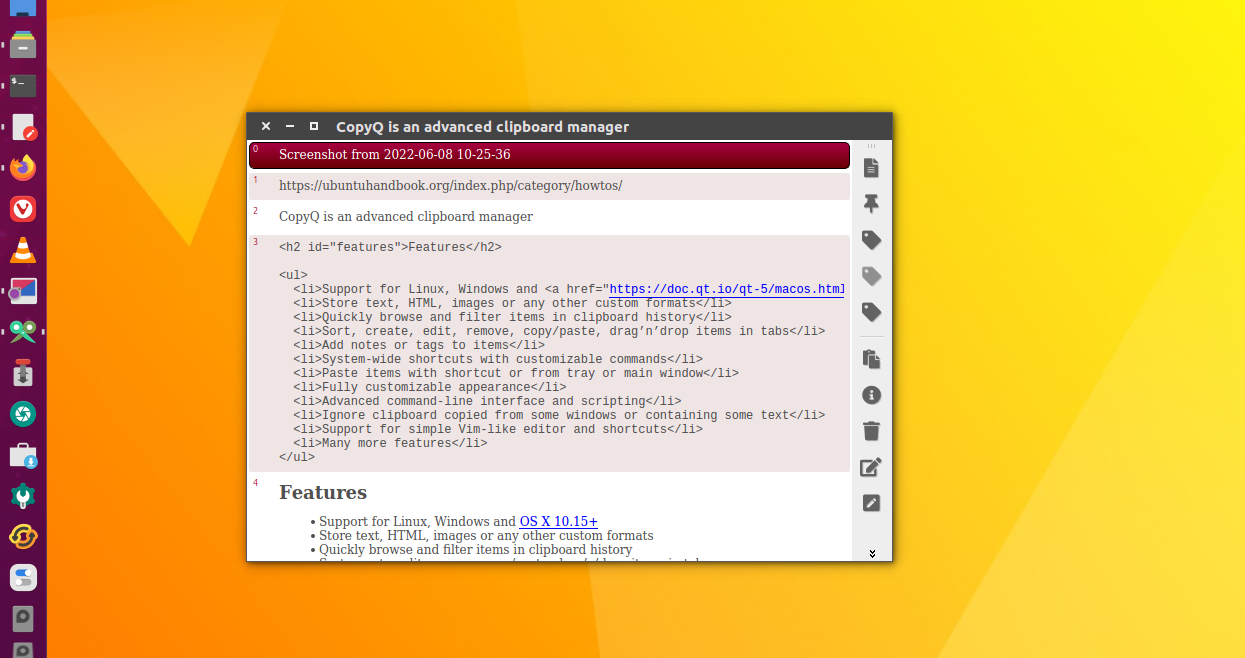
Using the CopyQ App to Open Clipboard in Ubuntu
To start CopyQ, double-click the program icon or run copyq.
The list with the clipboard history is accessible by clicking on the system tray icon or by running copyq toggle.
Copying text or image to the clipboard will create a new item in the list.
Selected items can be:
- edited (
F2) - removed (
Delete) - sorted (
Ctrl+Shift+S,Ctrl+Shift+R) - repositioned (with mouse or
Ctrl+Up/Down) - copied back to the clipboard (
Ctrl+C) - pasted to the previously active window (
Enter)
All items will be restored when CopyQ is next started.
To exit CopyQ, select Exit from the tray menu or press Ctrl-Q in the CopyQ window.