
Learn how to find network interface card details on Ubuntu. Here is how to check network connection configuration in Ubuntu terminal. This way, on Ubuntu, you can list network interfaces.
Find Network Card Name On Ubuntu Linux
Before you start to execute commands to find the status of Network Interface/Card, you will have to known the correct name of the installed interfaces on the Linux Ubuntu Systems.
To find the Network Card name, run the following command:
ls /sys/class/net/
The above command shows all the installed interfaces or network cards on the system. Please note that the wired interfaces start with the letter “e” and wireless/WiFi start with letter “w”.
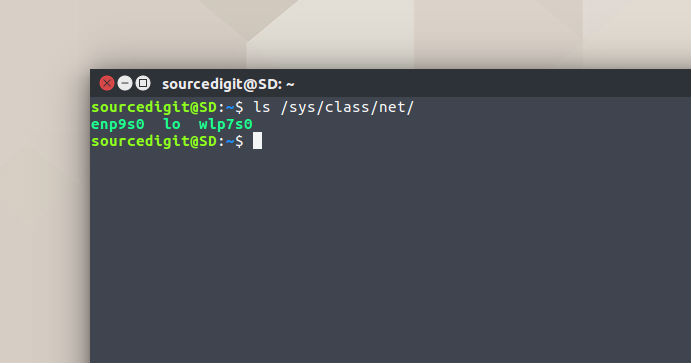
The output for my Linux System is enp9s0 – lo – wlp7s0 Which means, I have two Network Interface – (enp9s0) Wired and (wlp7s0) Wireless.
View Network Interface Card Details
To view the Network Interface Card details on Ubuntu Linux Systems, run ipconfig command:
$ sudo ifconfig
Or
$ sudo /sbin/ifconfig
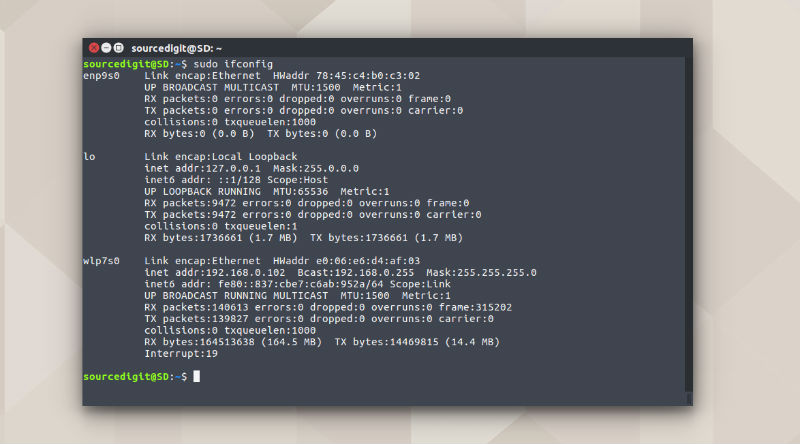
The above command will display the details of the Network Interface Card with the following details:
- eth0 – Ethernet network interface. The primary communication channel when a device is connected to network.
- lo – A Lookback interface. It is with only one endpoint and can not be used to communicate with rest of the computer or transfer files.
- wlp7s0 – Wireless communication network interface.
Once you get the name of the installed Network Interface, now it’s time to run the commands to find the status of the network connection and network cards.
For Wired Ethernet Connection
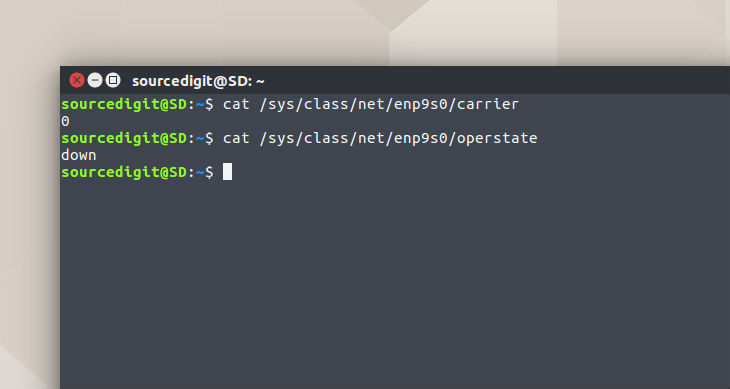
Open Terminal and run the following commands in Terminal.
cat /sys/class/net/enp9s0/carrier
If you got output as “1” (one), it means that the network cable is connected with your network card.
cat /sys/class/net/enp9s0/operstate
If you got output as “up”, it means that the network cable is connected with your network card.
For Wireless Connection
Open Terminal and run the following commands in Terminal.
cat /sys/class/net/wlp7s0/carrier
If you got output as “1” (one), it means that the network cable is connected with your network card.
cat /sys/class/net/wlp7s0/operstate
If you got output as “up”, it means that the network cable is connected with your network card.
Please Note: You will have to change the (enp9s0) Wired and (wlp7s0) Wireless for your system. Find the network card names and use the correct names in the commands given below.
Method 2
In case the above commands doesn’t work, there is another tool called “ethtool” to help you. ethtool is used to query and control network device driver and hardware settings, particularly for wired Ethernet devices.
Linux Users can also run the ethtool command to find out the connected state of a network cable on their system. Open terminal and execute the following command. Remember to change the correct Ethernet interface code:
sudo ethtool enp9s0
Verify That Network Interface Is Running
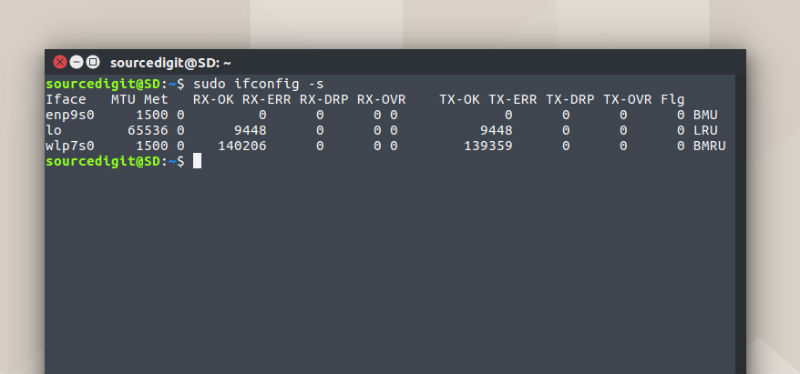
Run the following command to displays the list of devices that are active and running:
$ sudo ifconfig -s
If the interface is down it will not display the information.