
Do you keep wondering is there a task manager in Ubuntu. This post explains how to see and open task manager in Ubuntu terminal. Task monitor is known as system monitor in Ubuntu Linux.
Just like Windows have Task Manager, Ubuntu has a built-in utility called System Monitor which can be used to monitor or kill unwanted system programs or running processes. But, Ctrl+Alt+Del shortcut key isn’t used to bring the System Monitor in Ubuntu. By default, the Ctrl+Alt+Del key is used to bring up the log-out dialog option on Ubuntu System.
Open Task Manager in Ubuntu
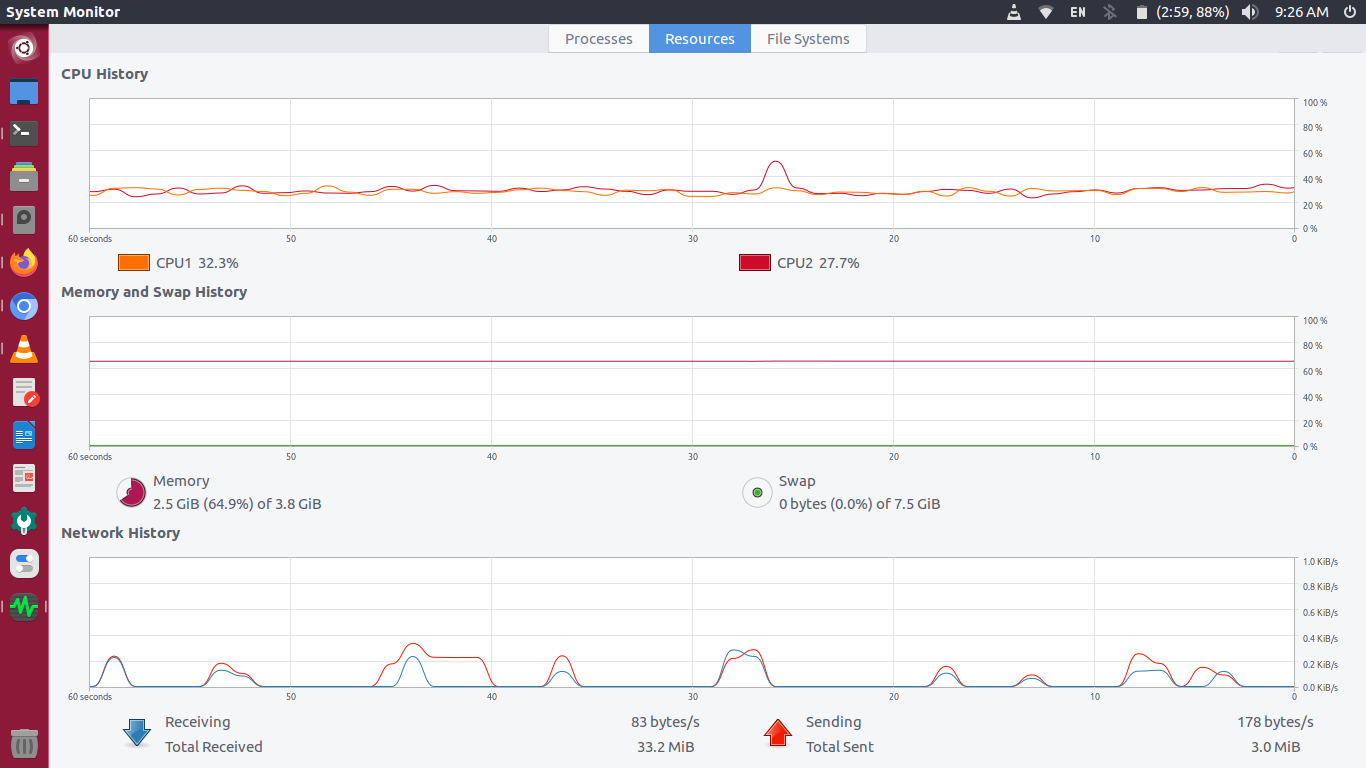
To open System Monitor (Task Manager) in Ubuntu, search for System Monitor in Ubuntu Dash and click on it.
You can also open System Monitor from Linux Terminal, to open run:
$ gnome-system-monitor
Once opened, you can see the System Monitor. The window is divided into three tabs – Processes, Resources and File Systems.
Kill a Process
The Processes tab shows all the running process on the Linux Ubuntu System. It displays the Process ID, %CPU and Memory used by the Process. Along with the Process Name it also shows the priority for the respective Process.
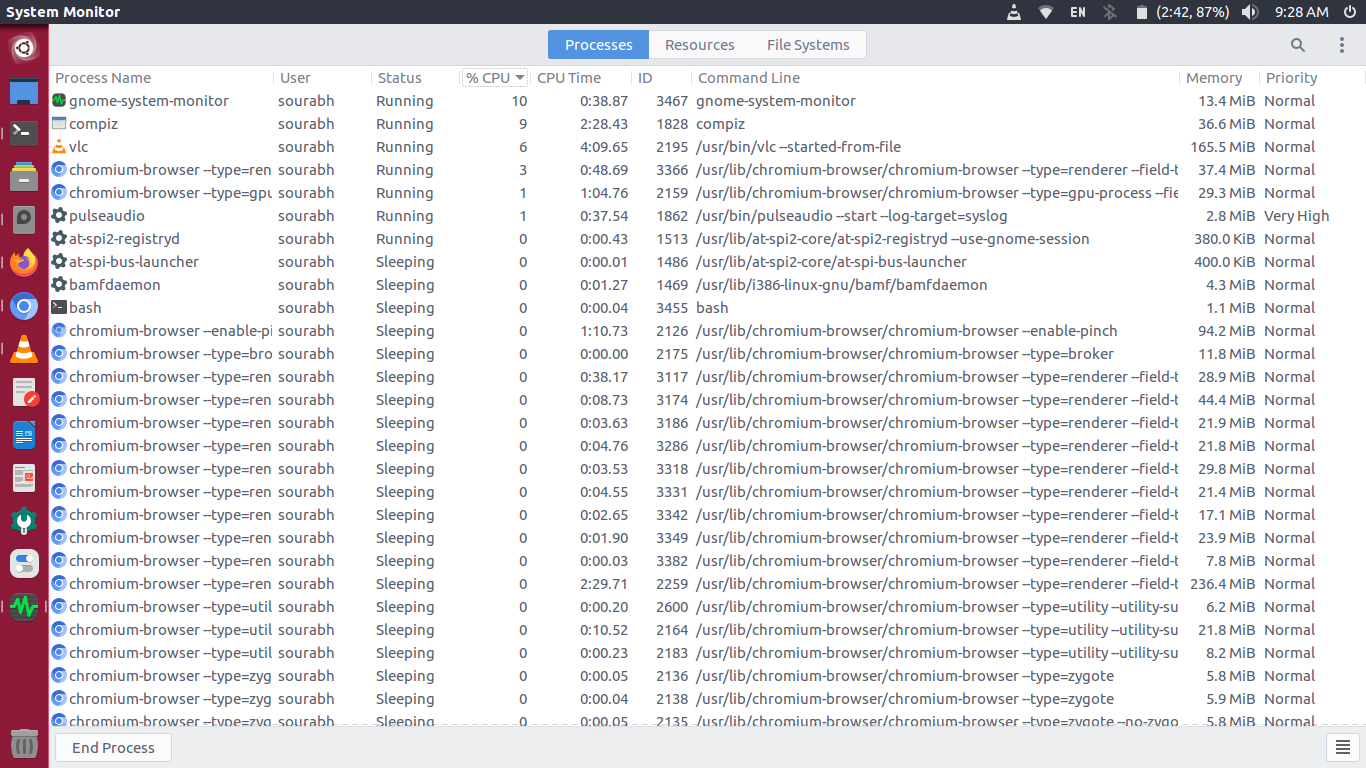
To kill or remove any unwanted Process, right click on it (Process). You will then get various options such as End, Kill, Stop, Continue Change Priority, Memory Maps, Open Files and Properties.
To End the Process, click End and to Kill the Process, click Kill.
Other two tabs in the System Monitor window are:
- Resources: This displays the Resources analytics for the system – CPU History, Memory and Swap History and Network History.
- File Systems:The File Systems tab shows the information about the Hard Disk Device. It shows information such as Type, Total Size, Available and Used Disk size.