
How to check command history in Linux with date? Not only this you can easily see users who are logged in; check user login history in Linux.
If you want to see command history in Linux with timestamp, here is how to get all command history in Linux Ubuntu
History Command
The history command can be used to display the recently used command history.
The history command has the following syntax:
history [-c] [-d offset] [n] or history -anrw [filename] or history -ps arg [arg...]
Users can display or manipulate the history list. One can display the history list with line numbers, prefixing each modified entry with a `*’. An argument of N lists only the last N entries.
History Command Options:
-c : clear the history list by deleting all of the entries
-d offset : delete the history entry at offset OFFSET.
-a : append history lines from this session to the history file
-n : read all history lines not already read from the history file
-r : read the history file and append the contents to the history list
-w : write the current history to the history file and append them to the history list
-p : perform history expansion on each ARG and display the result without storing it in the history list
-s : append the ARGs to the history list as a single entry
By default history command will display output as follows:
$ history
NOTE: When we use history command it won’t display what time the commands were executed from the bash history. To solve this problem create a shell variable called HISTTIMEFORMAT.
How to see time stamps in bash history
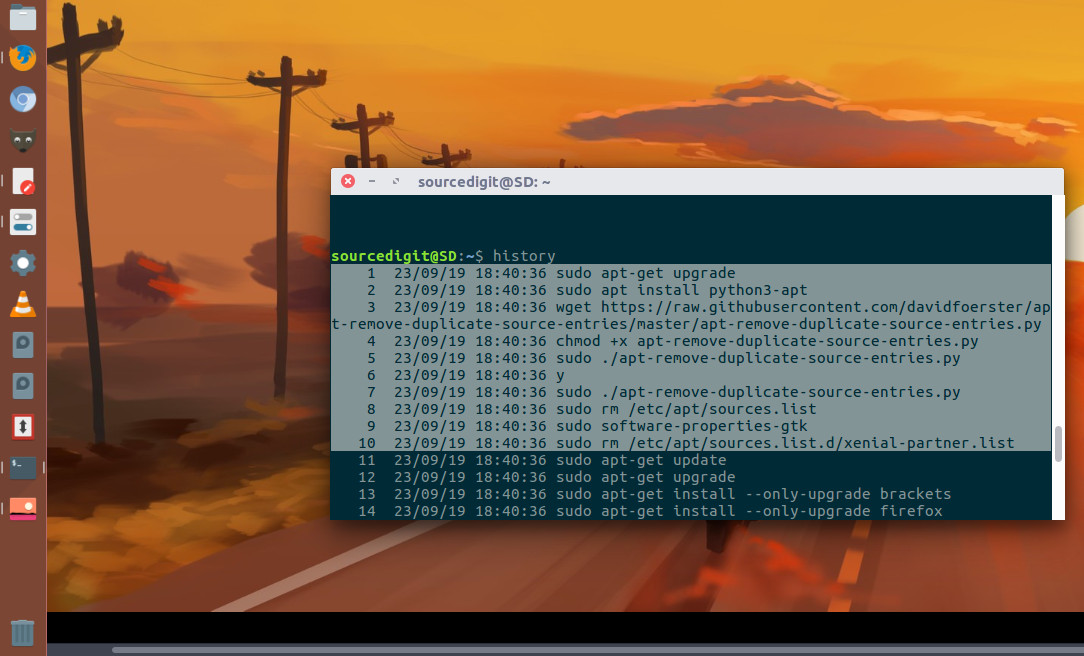
Defining the environment variable named HISTTIMEFORMAT as follows:
$ HISTTIMEFORMAT="%d/%m/%y %T "
OR add to your ~/.bash_profile file, enter:
$ echo 'export HISTTIMEFORMAT="%d/%m/%y %T "' >> ~/.bash_profile
Where,
%d – Day
%m – Month
%y – Year
%T – Time
Use the source command to load HISTTIMEFORMAT from file into the current shell script or a command prompt:
$ . ~/.bash_profile
OR
$ source ~/.bash_profile
Now run the history command to retrieve Linux or Unix bash command line history by date and time.
How To Check User Is Active Or Not In Linux
W Command: w command used to show who is logged on and what they are doing. w displays information about the users currently on the machine, and their processes. The header shows, in this order, the current time, how long the system has been running, how many users are currently logged on, and the system load averages for the past 1, 5, and 15 minutes.
The following entries are displayed for each user:
- login name
- the tty name
- the remote host
- login time
- idle time
- JCPU & PCPU
- command line of their current process
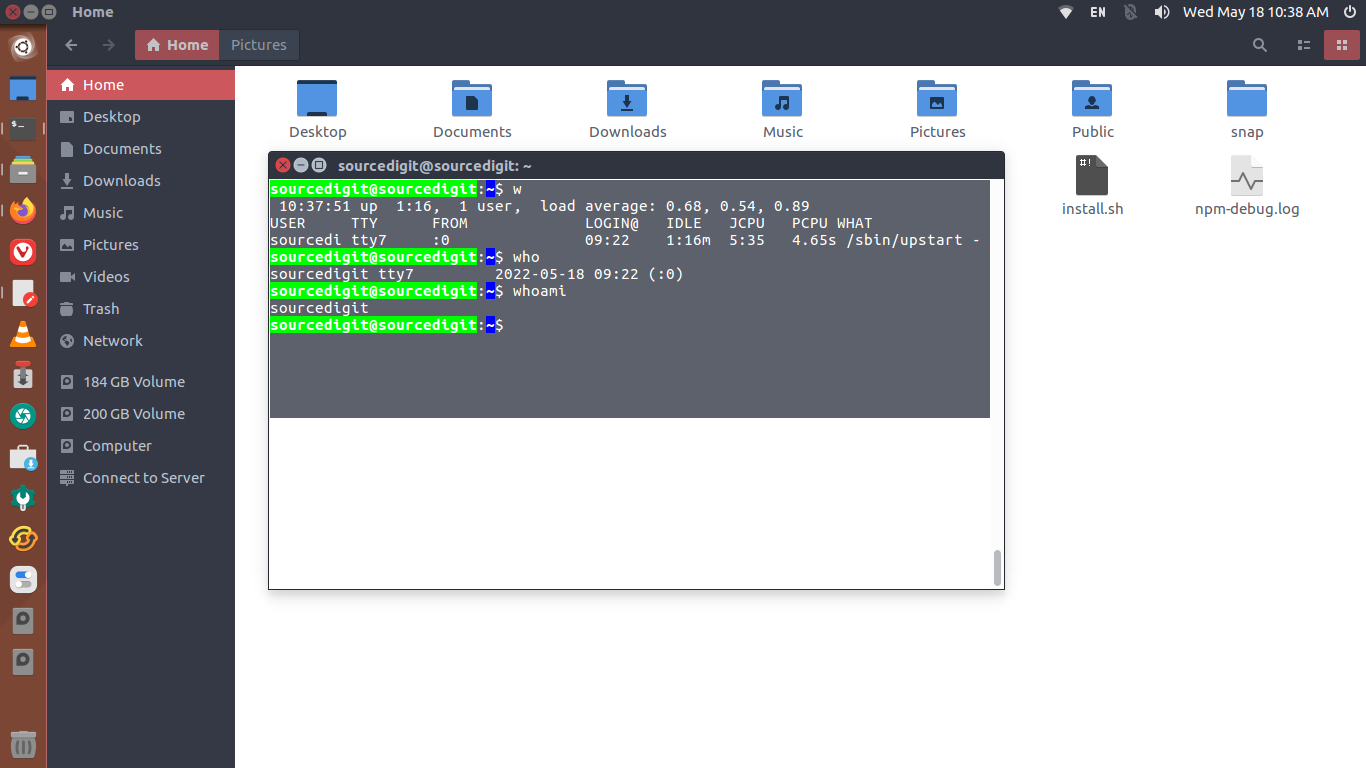
Who Command: ‘who’ prints information about users who are currently logged on. When no non-option argument is given with the command, ‘who’ prints the following information for each user currently logged on:
- login name
- terminal line
- login time
- remote hostname or X display
If you want to see the date and time of last system boot, run the who command with ‘–boot’ argument.
When you execute who command with ‘-q’ or ‘–count’ argument it will show only the login names and the number of users logged on. It will override all other options.
When you execute who command with ‘-u’ it will show the idle time. After the login time, print the number of hours and minutes that the user has been idle. ‘.’ means the user was active in the last minute. ‘old’ means the user has been idle for more than 24 hours.