
If you want to display asterisks and show password while typing in Linux Ubuntu terminal, you can read this tutorial on how to show asterisk password; display encrypted password in Linux.
Linux terminals do not display asterisks while entering a password because this is a security precaution aimed at preventing an onlooker from inferring the length of the password. This practice has been a traditional norm in Unix-like systems and is intended to offer greater security compared to a graphical interface, where the length of a password can be inferred from the count of asterisks.
Important Points
- The /etc/passwd file contains all the users’ information, including the encrypted password, group ID, and home directory.
- The encrypted user passwords are kept in /etc/shadow.
- The /etc/login.defs file contains some default settings like password aging and length settings.
NOTE: These files are read-only directory and can be read only by root.
Command To Show Password While Typing In Linux Ubuntu
Open a new Terminal by pressing Ctrl + Alt + T and type the following command:
sudo visudo
Now go to the line that reads “Defaults env_reset”.
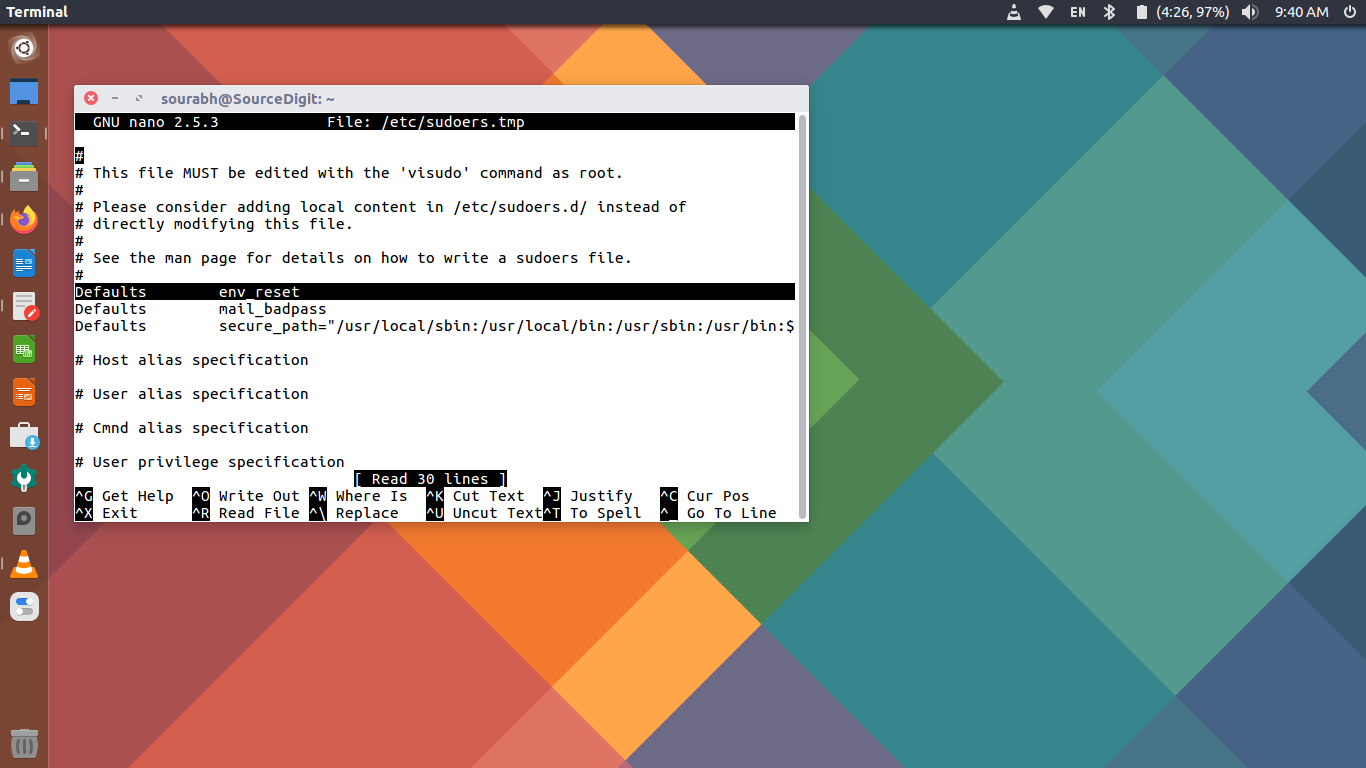
Note that you will have to use the the keyboard navigation keys. Simply clicking won’t work.
Now add the following text so that it reads “Defaults env_reset,pwfeedback”.
Once done, save the changes by pressing Ctrl + X and Enter key.
In this way, you can make the password asterisks visible in Ubuntu terminal.