
How to install Plank Dock, OS X-style Dock Launcher for Ubuntu 14.10/14.04 & Linux Mint Systems. How to install Plank Dock Themes (Plank-Themer) in Ubuntu /14.10/14.04/Linux Mint via PPA. Once installed, learn how to configure Plank Dock in in Ubuntu /14.10/14.04/Linux Mint Systems.
You can install or upgrade Plank Dock 0.8.0 for Ubuntu 14.10/14.04 & Linux Mint Systems. The latest version, Plank Dock 0.8.0 has been released with new feature and bug fixes.
Install or Upgrade to Plank 0.8.0
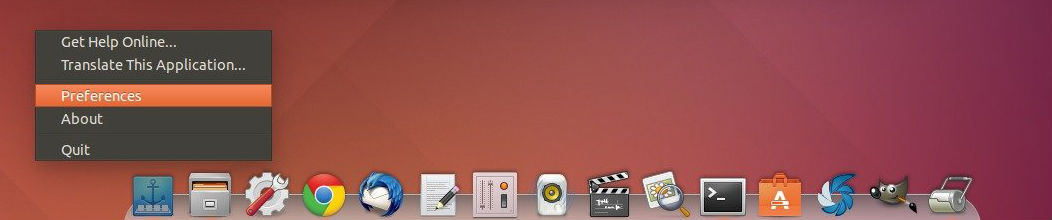
To add the PPA repository, press Ctrl+Alt+T to open terminal and run:
sudo add-apt-repository ppa:ricotz/docky

sudo apt-get update

sudo apt-get install plank
You can install Plank Dock for Ubuntu 12.04 (Precise Pangolin) and later or once installed, update Plank as a package from either the official repositories or one of the official PPAs. To update or upgrade the Plank Dock, run the following command in the Terminal:
sudo apt-get update

sudo apt-get upgrade
Autostart Plank Dock at Login & Change Other Preferences
You can autostart the Plank Dock at login. To do so, open Startup Applications utility from the Dash and add plank into the list.
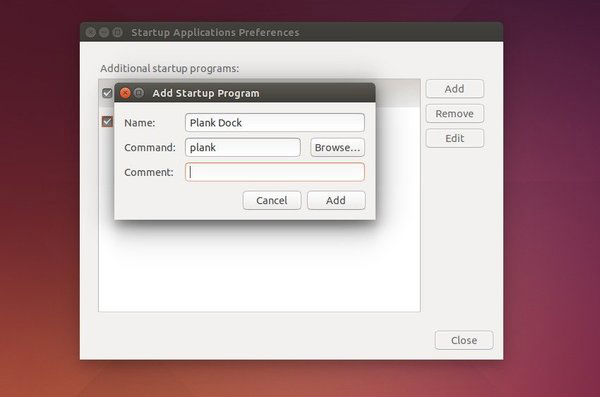
Not only the autostart, you can also configure the dock.
To configure the Plank Dock, right click on the icon on the dock and select Preferences. Under preferences you can set and change theme, position, icon size, auto-hide behavior, and many other options.
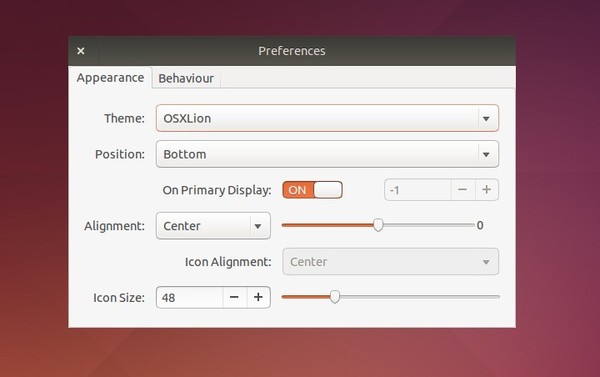
Install Plank Theme (25 Plank Themes)
If you want to configure Plank Dock with customized Plank Themes, you can install Plank-Themer. The Plank Themer comes with 25 different themes which can be used for Ubuntu/Linux Mint Systems. Open Terminal and run the following commands to install Plank Themer:
sudo add-apt-repository ppa:noobslab/apps

sudo apt-get update

sudo apt-get install plank-themer

cd /tmp/ && ./Replace.sh;cd
Configure Plank Dock
Please note that Plank Dock doesn’t have graphical configuration interface. Which means, you will have to configure Plank Dock manually. To configure it, enter the following command in Terminal:
nano ~/.config/plank/dock1/settings
Whle editing the configuration file, you can set the following values:
HideMode = 1 to auto hide, 0 to disable it.
Position = 3 means the dock location. 0 = left, 1= right, 2 = top, 3= bottom.
Image via UbuntuHandbook