
Install uGet download manager on Ubuntu Linux. uGet is a Powerful download manager for Linux Ubuntu with a large inventory of features but is still very light-weight and low on resources.
Below is the impressive list of features:
- Downloads Queue: place your downloads into a Queue to download as many, or as few, downloads as you want simultaneously. As a download finishes the queue will automatically start downloading the remaining files.
- Resume Downloads: if your connection drops out you don’t have to worry, you can start right back where you were with download resuming. (not guaranteed, server controlled and can not be bypassed by a download manager)
- Advanced Download Categories: unlimited categories to manage your downloads…scroll down for Category specific features.
- Clipboard Monitor: specify the types of files (via extension) that you want to monitor and any time you add them to your clipboard it will prompt to download the copied files. (universal browser integration) – also works with batch downloads.
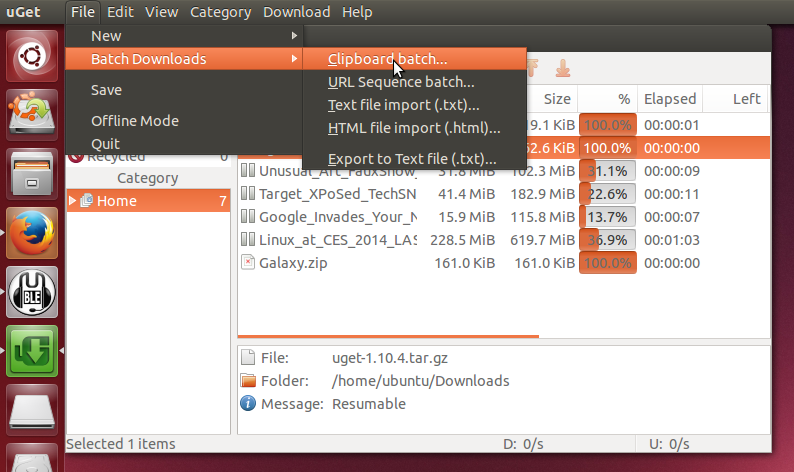
- Batch Downloads: allows the user to add an unlimited amount of files at one time to the queue for downloading…scroll down for Batch specific features.
- Multi-Protocol: support for downloading files through HTTP, HTTPS, FTP, BitTorrent* & Metalink*
- Multi-Connection (aka Multi-Segment): up to 16 simultaneous connections PER download – uGet’s Multi-Connection feature also utilizes adaptive segment management which means that when one segment drops out then the other connections pick up the slack to ensure optimal download speeds at all times. This also applies to segments that become drastically slow due to server limitations.
- FTP Login & Anonymous FTP: supports downloading from anonymous FTP as well as login support via Username & Password for private/protected FTP servers.
- Scheduler: scheduling of when uGet is allowed or not allowed to download files.
FireFox Integration via FlashGot: Clipboard Monitor is all you need for browser integration really but FlashGot is a separately supported FireFox addon so we have made it compatible with uGet. - Quiet Mode: allows downloads to be added to a specific category automatically and begin downloading automatically, skipping the dialog properties popup.
- Computer Shutdown After Completion: optional feature to turn off your computer after all files have finished downloading, perfect for large download sessions that will take overnight while you sleep.
- CLI / Terminal Usage Support: ability to use a command line or terminal to download files.
Folder Auto-Creation: if you provide a path to save a file but the folder doesn’t exist uGet will create it for you automatically in order to save the file there. - Download History Management: keep a history of downloads for finished entries and recycled entries up to 9,999 files per list, or automatically delete the oldest entries once your custom limit has been met.
- Multi-Language Support: uGet supports 20 languages which includes: Arabic, Belarusian, Chinese (Simplified), Chinese (Traditional), Czech, Danish, English (default), French, Georgian, German, Hungarian, Indonesian, Italian, Polish, Portuguese (Brazil), Russian, Spanish, Turkish, Ukrainian, and Vietnamese.
- Aria2 Plugin: Aria2 & uGet integrate to provide a nice user-friendly GUI for the Aria2 CLI app. (^ *requires aria2 plugin)
Install uGet In Ubuntu
Install uGet by running the following commands:
sudo apt-get update

sudo add-apt-repository ppa:plushuang-tw/uget-stable

sudo apt-get update

sudo apt-get install uget
Once installed, open the uGet download manager from Ubuntu Dash.